Thinka for Z-Wave — FAQ
Is Your Thinka Not Working? Here’s What to Do
We understand how frustrating it can be if your Thinka device isn’t working properly. Don’t worry—before reaching out to support, try these simple troubleshooting steps to quickly resolve the issue:
- Check the LED Indicator:
Take a look at the LED(s) on your Thinka. Normally, the LED should be solid green. If you see a different color or if the LED is flashing, this could indicate a specific problem. Find out what each LED color means by visiting our LED color guide. - Access the Web Interface:
Try accessing the Thinka web interface. Need help? See our guide on finding your Thinka on your network. - Restart Your Thinka:
Sometimes a simple reboot can fix the problem. Learn how to restart your device here. - Network Connection Check:
Look at the small LEDs next to the network port; they should be green and orange. If they’re lit or flashing, your Thinka is connected to the network. You can also install the Thinka Companion app for further setup. - Find Your Device on Your Router:
Try locating your Thinka’s DHCP address through your router settings.
If these steps don’t solve the issue, note your Thinka’s serial number and contact our support team at support@thinka.eu. We’re here to help!
Why is My Thinka's LED Flashing Red?
If you notice that your Thinka's LED is flashing red, it could mean one of two things:
- Software Update in Progress: Your Thinka may be updating its software. Please allow the process to complete.
- Connection Issue: The device may be experiencing trouble connecting to the KNX system or your network.
To resolve connection issues, we recommend downloading and installing the Thinka Companion app. This app helps you easily locate your Thinka on your network and troubleshoot any connectivity problems.
Important:
- Do not power off your Thinka while the LED is flashing red.
- Wait at least 10 minutes before attempting to reset your Thinka.
By following these steps, you can ensure your Thinka smart home system remains connected and up to date. If you need further assistance, our support team is here to help!
Why is My Thinka’s LED Flashing Green?
If your Thinka’s LED is flashing green, don’t worry—this indicates that your Thinka is functioning correctly but requires your attention.
- Your Thinka device is operating as expected, but there may be a configuration or update that needs to be addressed.
- To check what your Thinka needs, simply visit the web interface. You can easily access it by going to https://setup.thinka.eu.
- Once there, log in to view the current status and receive clear instructions on how to resolve any pending actions or notifications.
Regularly checking your Thinka’s status ensures optimal performance and a seamless smart home experience. If you have further questions, our support team is always here to help!
Why is My Thinka’s LED Red?
No need to worry! If you see a red LED on your Thinka, it simply means your device is starting up.
- The red light is a normal part of the booting process.
- Once the startup is complete, the LED will change to its regular color, indicating your Thinka is ready to use.
- If the red LED stays on for a prolonged period, try restarting your Thinka or check your power connection.
Rest assured, your Thinka is just getting ready to deliver seamless smart home performance. For more troubleshooting tips, visit our support page or contact our team!
How to Factory Reset Your Thinka for Z-Wave
Need to restore your Thinka for Z-Wave to its original settings? Follow these simple steps for a quick and safe factory reset:
- Locate the top button on your Thinka device (marked with the Thinka logo).
- Press and hold the button until the LED indicator flashes orange.
- Release the button, then press and hold again until the LED flashes purple.
- Once the LED stops flashing, you can release the button. Your Thinka will now be reset to factory default settings.
Important: Only perform a factory reset if absolutely necessary, such as when moving to a new location or preparing to sell your Thinka device.
Tip: Before resetting, make sure to create a backup of your Thinka settings. This will make it much easier to restore your configuration after the reset.
Resetting your Thinka for Z-Wave is fast and easy, ensuring your smart home system stays secure and personalized for your needs.
How Do I Return My Thinka Device?
Returning your Thinka is quick and easy! Just follow these simple steps to start your return process:
- Log in to your Thinka account (whether you're a reseller or a customer).
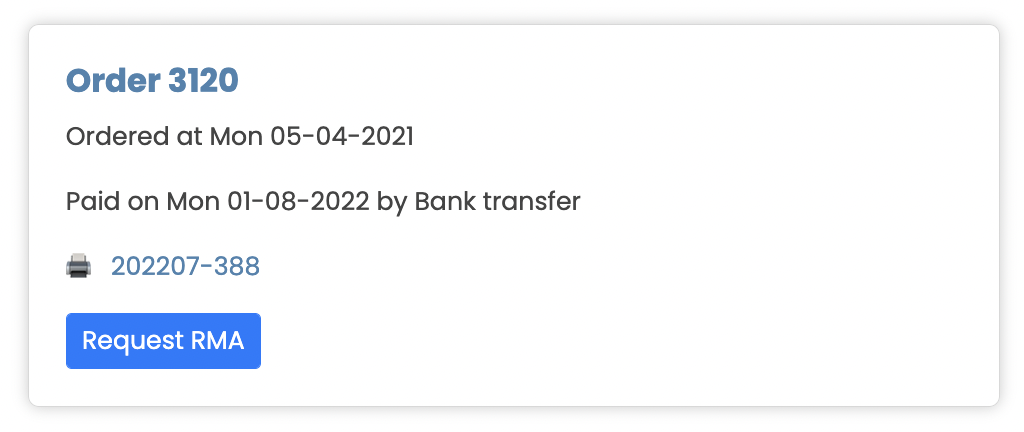
- Navigate to the Order History section in the menu.
- Find the order containing your Thinka device that you wish to return.
- Select the order and request an RMA (Return Merchandise Authorization) directly from your account dashboard.
Once your RMA request is approved, you’ll receive detailed instructions on how to send your Thinka back to us. Our support team is always here to help, ensuring your return is smooth and hassle-free.
Need more assistance? Feel free to contact our customer support for any questions about Thinka returns, exchanges, or warranty claims.
How to Easily Remove or Reset Your Thinka Password
If you've forgotten your Thinka password or simply want to reset it for security reasons, we've made the process quick and hassle-free:
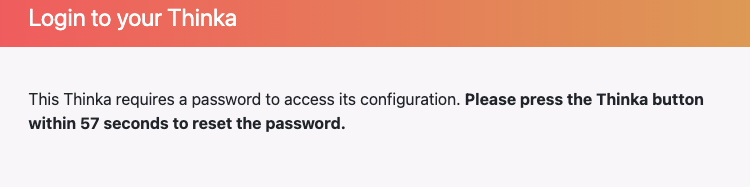
- Go to the Thinka login page.
- Click the ‘reset the password’ link.
- Within 60 seconds, press the button on your Thinka device to confirm the reset.
This simple process ensures you can regain access to your Thinka whenever you need, without any stress. Removing or resetting your password helps keep your smart home secure and user-friendly.
Need more help? Our support team is always here to assist you with your Thinka password reset or any other questions. Enjoy secure and convenient smart home access with Thinka!
Why Can't I Invite a Home Member in Google Home?
If you're seeing the message, "Account cannot be invited to manage structures," when trying to add someone to your Google Home, it’s likely because you’re using a G Suite (now called Google Workspace) email address.
- Google Home and Google Nest currently do not support inviting G Suite or Workspace accounts as home members.
- To resolve this issue, try inviting the person using a standard Gmail account instead.
- If you need more information or step-by-step assistance, please visit the official Google Support page.
For the best Google Home experience, make sure all home members use personal Gmail accounts. This ensures smooth integration and full access to smart home features!
How to Enable Thinka Support Remote Access for Your Thinka for Z-Wave
Need help from Thinka support? Granting remote access to your Thinka for Z-Wave is quick, easy, and secure! Follow these simple steps to get expert assistance from our team:
- Via Web Interface:
- Click the settings icon at the top right of the page.
- Navigate to the 'RemoteAccess' tab.
- Click the 'Start Remote Support Access' button.
- Use 'Share with Thinka support' to email the access code directly to a Thinka support agent.
- Via Thinka Setup App:
- Download the Thinka Setup App from the App Store.
- Open the app, select your Thinka device, and tap 'Remote Access'.
After enabling remote access, a unique number (also called the "magic number") will be displayed. Simply share it with Thinka support by clicking 'Share with support'. Only authorized Thinka personnel can access your device—your privacy and security are guaranteed!
Below are some helpful images to guide you through the process:
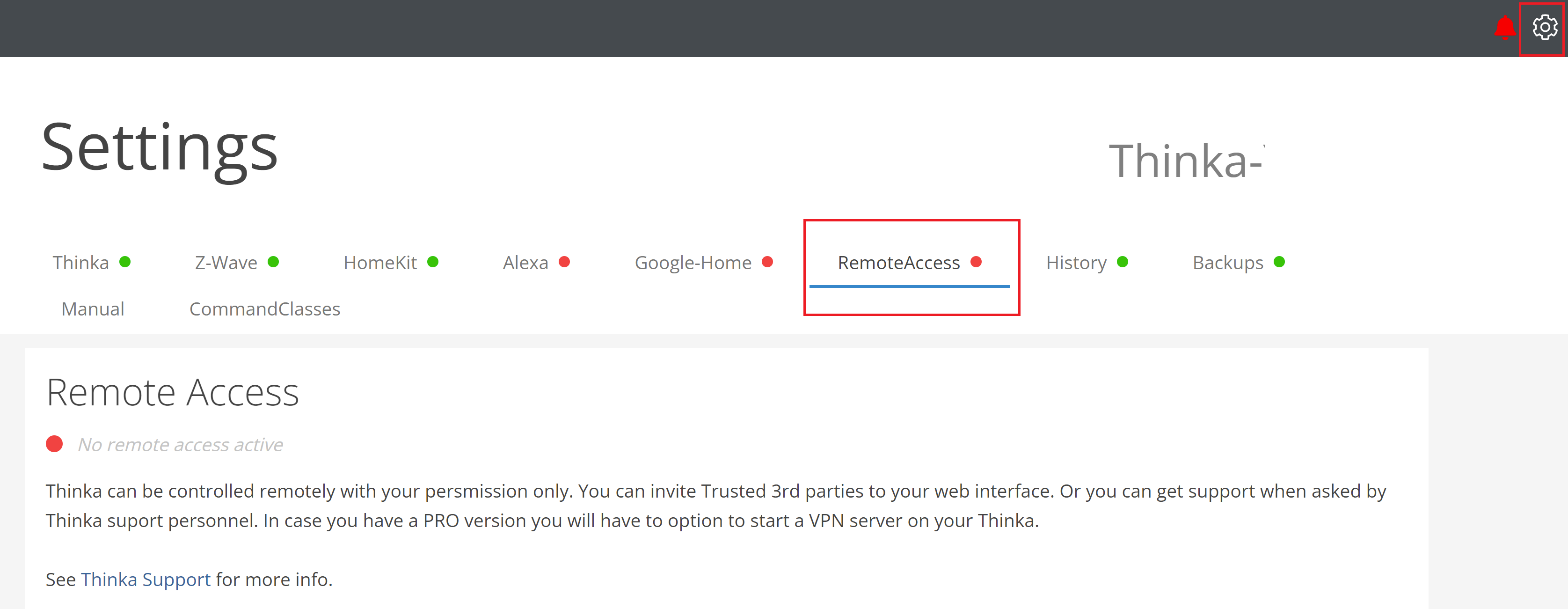
Click the settings icon and go to the 'RemoteAccess' tab.

Click the 'Start Remote Support Access' button.
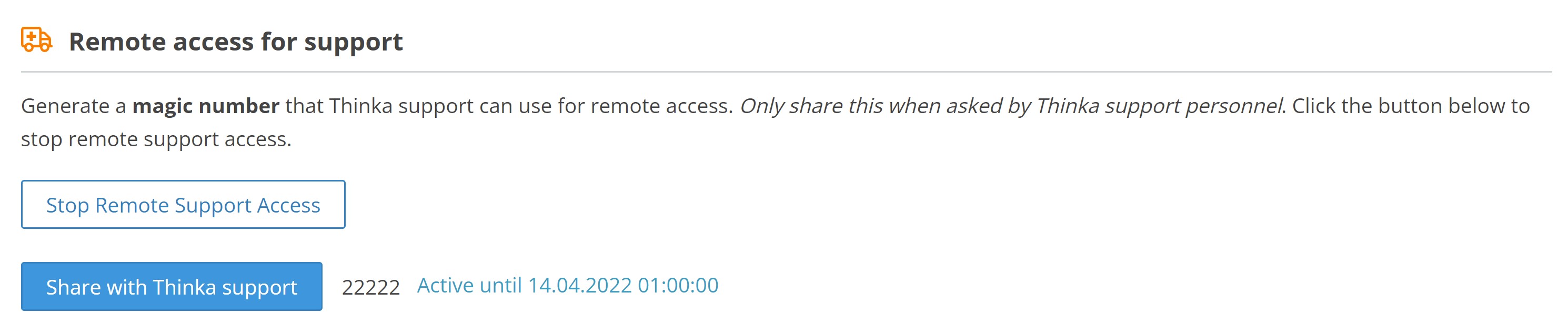
Share the displayed magic number with Thinka support for secure remote assistance.
How to Give Your System Integrator Remote Web Access to Your Thinka Z-Wave
Granting your installer secure remote access to your Thinka Z-Wave is simple and convenient. Follow these easy steps to enable Installer Support and ensure your integrator can provide you with the best service:
- Log in to your Thinka Z-Wave web interface.
- Click the settings icon located on the right side of the page.
- Navigate to the Thinka tab.
- Scroll down and select Start Remote Web Access.
- A unique link (URL) will be generated. Click Copy URL to copy the link to your clipboard.
- Share this URL securely with your installer via email, WhatsApp, or your preferred method.
- If your Thinka has a password, either share it with your installer or temporarily remove it for easier access.
Important: Treat your access link and password with care—anyone with this information can access your Thinka web interface. You can revoke access at any time, and for your security, remote access is automatically revoked after 14 days. Each time you enable access, a new unique URL will be created.
See the images below for a visual guide:
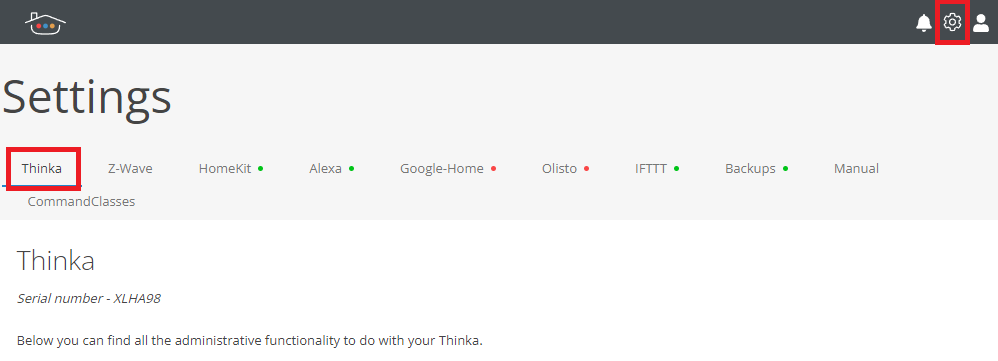
Click settings icon and go to 'Thinka' tab
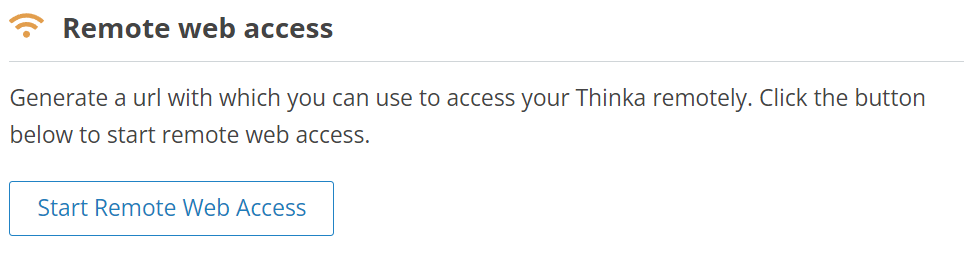
Click 'Start Remote Web Access'
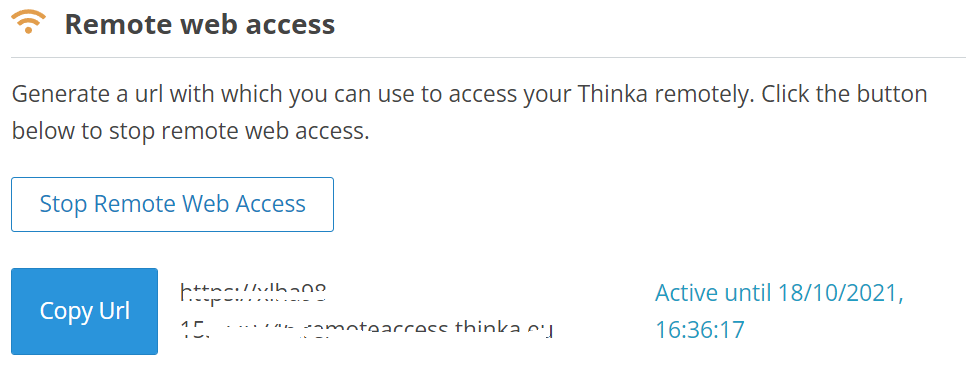
Click 'Copy Url' to copy the link to clipboard. Now you can share this link with your installer.
How to Check the Quality of Your Z-Wave Network
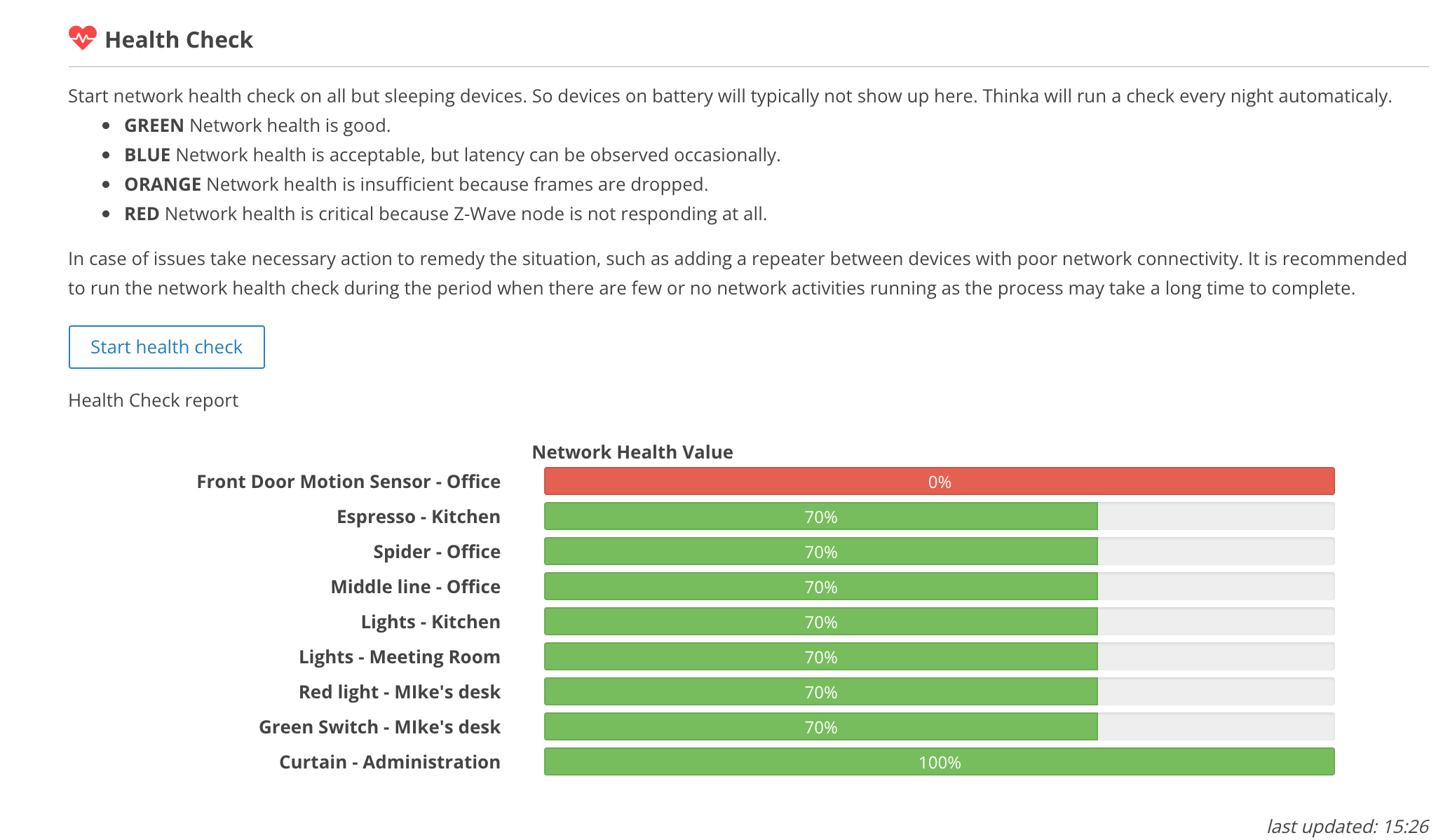
Want to make sure your Z-Wave network is running smoothly? Thinka automatically performs a health check every night to monitor the quality of your Z-Wave connections. This helps you keep your smart home devices working seamlessly!
- Easy Access: Simply log in to your Thinka web interface.
- Navigate: Go to Settings → Z-Wave to view the latest health check report.
- Visual Insights: Instantly see the status of every device and connection in your network.
With these detailed insights, you can quickly identify and resolve any issues, ensuring optimal performance for your smart home. Stay in control and enjoy a reliable Z-Wave experience with Thinka!
How to Reboot Your Thinka Z-Wave Device
Need to restart your Thinka Z-Wave device? It’s easy! Just follow these simple steps to quickly reboot your device and keep your smart home running smoothly:
- Open your Thinka app and navigate to the Settings section.
- Select the Thinka tab to access your device controls.
- Scroll to the bottom of the page, where you’ll find the Reboot button.
- Click the Reboot button to safely restart your Thinka Z-Wave device.
Rebooting your device can help resolve connectivity issues and ensure optimal performance for your Z-Wave network. If you have any questions or need further assistance, our support team is here to help!

Having Trouble Completing Your Order Checkout?
We understand how important a smooth checkout experience is. If you're unable to complete your order on our website, it may be due to one of the following reasons:
- Shipping Unavailable: At this time, we may not offer shipping to your selected country. Please double-check your shipping address.
- Payment Issues: Your payment details might be incorrect or your payment method was declined. Make sure all information is accurate and your card is valid.
- System Glitch: Occasionally, a temporary technical issue can interrupt the checkout process. Refreshing the page or trying again later often helps.
If you’re still experiencing difficulties, our friendly support team is here to help! Simply email us at support@thinka.eu and we’ll quickly assist you in completing your purchase.
Shop with confidence—your satisfaction is our priority!
Why Can't I See My Thinka in the Thinka Companion App?
If your Thinka device isn't showing up in the Thinka Companion App, don't worry—here are some quick troubleshooting steps to help you get connected:
-
Check the LED Status on Your Thinka
Look at your Thinka device and confirm that its LED indicator is green. This means your Thinka is powered and ready. If the LED shows a different color, click here to learn what the LED colors mean. -
Ensure Proper Network Configuration
Even with a green LED, Thinka may not be visible if there’s a network issue. Please make sure:- Your phone and Thinka device are connected to the same Wi-Fi network.
- Avahi / Bonjour (mDNS) traffic is allowed on your network. Some routers or firewalls may block this by default—check your settings to enable device discovery.
Following these steps will help your Thinka appear in the app and get you back in control of your smart home in no time!