Thinka for KNX — FAQ
Can I Control My Garage Door with Thinka?
Absolutely! You can easily control your garage door using Thinka. We proudly support 'Garage Door' functionality through our beta channel, giving you convenient and smart access to your garage from anywhere.
- Enhance your home automation with seamless garage door integration
- Enjoy peace of mind with secure, remote control
- Experience effortless setup and reliable performance
Ready to get started? Follow our step-by-step instructions here to configure your garage door opener with Thinka today!
Does Thinka Support Adaptive Lighting with HomeKit?
Yes! Thinka proudly supports Adaptive Lighting with Apple HomeKit, giving you effortless control over the color temperature of your smart lights throughout the day.
- Enjoy Adaptive Lighting by joining our BETA channel and updating to firmware version 4.3.1300.
- To use Adaptive Lighting, you'll need an Apple Home Hub (such as a HomePod, Apple TV, or iPad set up as a home hub).
- Make sure your light bulbs are either Colour or Tunable White to take full advantage of this feature.
Thinka’s Adaptive Lighting support ensures your lights automatically adjust to match the time of day—creating a healthier and more comfortable living environment. Experience the convenience and ambiance of smart home lighting with Thinka and HomeKit today!
How do I pair with Thinka?
Pairing your Thinka with HomeKit is now easier than ever! Our newly updated Thinka Companion App is available on the App Store and brings enhanced features to streamline your smart home experience.
- Effortless Pairing: The app guides you step-by-step to connect your Thinka with HomeKit and assign all your smart devices to the correct rooms.
- Network & KNX Monitoring: Easily monitor your network and KNX system status right from the app for peace of mind and smooth operation.
- Password Protection Support: Secure your Thinka with password protection—fully supported by the app for added security.
- Stay in Sync: Instantly receive notifications if any Thinka accessories are out-of-sync with HomeKit, so you can keep your smart home running perfectly.
If you have questions or feature requests, our support team is here to help at support@thinka.eu. Enjoying the app? Please consider leaving us a review in the App Store—your feedback helps us improve!
How Many Accessories Can Thinka Control?
With Thinka, you can control up to 150 Apple HomeKit accessories per bridge, as set by Apple HomeKit's official limit. If you count Thinka itself as an accessory, the maximum is 149 additional accessories.
It's important to note that an accessory can be much more than a single device. For example, one smart lamp accessory might feature four separate lightbulbs, each with its own controls for switching and dimming. This means one accessory can offer multiple services and use several group addresses—allowing you to manage a wide range of functions within the same accessory.
- Most accessories use two group addresses.
- You can combine several services into one accessory for more efficient control.
- The Apple Home app displays services, not accessories, so multiple services within one accessory will always appear in the same room.
If your smart home setup requires more than 150 accessories, simply add multiple Thinka devices to your network for expanded control.
Discover more about Apple HomeKit compatibility in our detailed article.
What HomeKit Device Types Does Thinka Support?
Looking to connect your smart home devices with Apple HomeKit using Thinka? Thinka offers broad compatibility with a wide range of HomeKit accessory types, making it easy to create a seamless, secure, and smart living experience.
- Switches
- Lightbulbs (including color-changing and tunable white options)
- Window Coverings (curtains, blinds, awnings, shades, roller shutters)
- Thermostats (heating and cooling)
- Sensors:
- Temperature Sensors
- Humidity Sensors
- Carbon Dioxide Sensors
- Light Sensors
- Motion Sensors
- Occupancy Sensors
- Contact Sensors
- Smoke Sensors
- Leak Sensors
- Fans
- Push Buttons
- Garage Doors
Important: Thinka cannot bridge IP cameras or door locks that provide direct access to your home, as per Apple’s HomeKit security restrictions. For IP camera integration, please use a HomeKit-certified device.
With Thinka, you can easily control your favorite smart home devices using Apple HomeKit, enhancing your home’s comfort, safety, and convenience.
Discover More About HomeKit and the Home App
Are you curious about Apple HomeKit and the Home app? We've got you covered! HomeKit is Apple's smart home platform, designed to make connecting and controlling your compatible smart devices easier, safer, and more intuitive—all from your iPhone, iPad, or Mac.
- Centralized Control: Manage lighting, security cameras, thermostats, and more within one easy-to-use app.
- Seamless Integration: HomeKit works perfectly with Siri, allowing voice commands for ultimate convenience.
- Enhanced Security: Apple’s advanced encryption ensures your smart home remains private and secure.
- Automation: Schedule routines and scenes to automate your home, saving you time every day.
To dive deeper into HomeKit’s features and how it can transform your living space, visit our comprehensive guide:
What is HomeKit?
Can I Use HomeKit, Google, and Amazon Smart Home Assistants Together?
Absolutely! You can seamlessly combine Apple HomeKit, Google Assistant, and Amazon Alexa in your smart home setup.
- Enjoy the flexibility of using HomeKit for stunning visual control on your iPad or any Apple device—perfect for wall-mounted displays.
- Place Amazon Echo devices in every room for hands-free voice control and easy access to your favorite Alexa skills.
- Add a Google Nest in your kitchen or other areas to take advantage of Google’s powerful voice assistant and smart device integration.
This multi-platform approach lets you customize your smart home experience, so you get the best features from each ecosystem. Easily control your lights, thermostats, security cameras, and more with your preferred assistant—no need to choose just one!
Unlock the full potential of your smart home by combining HomeKit, Google, and Amazon devices for convenience, flexibility, and enhanced control.
Can I Control My Home Remotely?
Absolutely! With the Home app, you can easily manage and control your HomeKit-enabled accessories from anywhere. By setting up a home hub, you gain the power to:
- Remotely access and control your smart lights, locks, thermostats, and cameras
- Receive real-time notifications and updates about your home
- Automate your devices to perform actions at specific times or in response to your location
- Ensure your home stays secure and comfortable, no matter where you are
Setting up your home hub is simple and unlocks full remote access, letting you enjoy a smarter, more convenient lifestyle. Take advantage of automation features to have your HomeKit accessories respond to your needs automatically.
Want to learn more? Visit our Controlling Accessories Remotely page for step-by-step instructions and additional details.
Why Can’t My Thinka Connect to HomeKit?
If your Thinka isn’t connecting to Apple HomeKit—especially during the first installation or after a network change—you might notice messages like “Connecting to Bridge” or “Accessory not found.” Don’t worry, this is a common issue and is usually related to your network setup.
- First-time setup: If you’re connecting Thinka to HomeKit for the first time, be sure to reset HomeKit via Settings > Apple HomeKit on your Thinka’s web interface.
- Previously connected: If Thinka was connected before, use the same iPhone or iPad to install the Thinka Companion app and check if it can find your Thinka. If not, network issues may be the cause.
- Common network issues: Problems often arise due to complex networks, routing errors, or misconfigured IPv6 settings.
- Bonjour/mDNS protocol: HomeKit relies on this for device discovery. Multiple routers, VLANs, or certain access point settings may block this traffic.
- Network troubleshooting: Use the Discovery app to see if Thinka is visible under the _hap._tcp key when your iOS device is on the same network.
Still having trouble? Review your network setup or contact Thinka support for further help.
How Can I Adjust My Apple HomeKit Scenes?
Customizing your Apple HomeKit scenes is simple and empowers you to create the perfect smart home experience. If your installer set up initial scenes when installing your KNX system and Thinka, you can still personalize or update these scenes anytime—no technical expertise required!
- Open the Apple Home app on your iPhone or iPad.
- Select the scene you wish to modify.
- Edit the devices, actions, or settings within the scene to match your preferences.
- Save your changes and enjoy your tailored smart environment.
Adjusting your HomeKit scenes lets you control lighting, temperature, security, and more—all with just a few taps. For detailed instructions and tips, visit our HomeKit Scenes section.
Take full control of your smart home and make every scene truly yours with easy HomeKit scene adjustments!
Can I Control My Door, Door Lock, or Window with Thinka?
Currently, you cannot control your door, door lock, or window using Thinka via HomeKit. Apple’s HomeKit platform has specific security policies that prevent Thinka—or any other HomeKit bridge—from connecting and controlling devices that grant physical access to your home, such as smart locks or automated doors and windows.
- Security First: Apple’s rules are designed to protect your home by ensuring only directly integrated devices can control entry points.
- Official Apple Statement:
"Any accessory, regardless of transport, that enables physical access to the home, such as door locks, must not be bridged." - Other smart home devices can be controlled with Thinka—just not those that allow direct access to your home.
If you’re looking to automate lighting, climate, or entertainment systems, Thinka is the perfect solution. For doors, locks, or windows, direct HomeKit integration is required due to Apple’s security standards.
What Is the App Featured on Your Website That Runs on a TV?
Looking for the sleek dashboard app displayed on our website? We use DayView, a powerful personal dashboard designed specifically for Apple TV. DayView transforms your TV into an information hub, offering you real-time updates and an organized overview of your day right from your living room.
- Easy to Use: DayView is user-friendly, making it simple to get started and customize your dashboard.
- Personalized Information: Stay on top of your schedule, weather, reminders, and more—all in one place.
- Optimized for Apple TV: Enjoy a seamless experience on the big screen, turning your TV into a smart command center.
Learn more about DayView and how it can enhance your daily routine by visiting the official article: DayView on MacRumors.
How to Configure Your Energy Monitor with Thinka
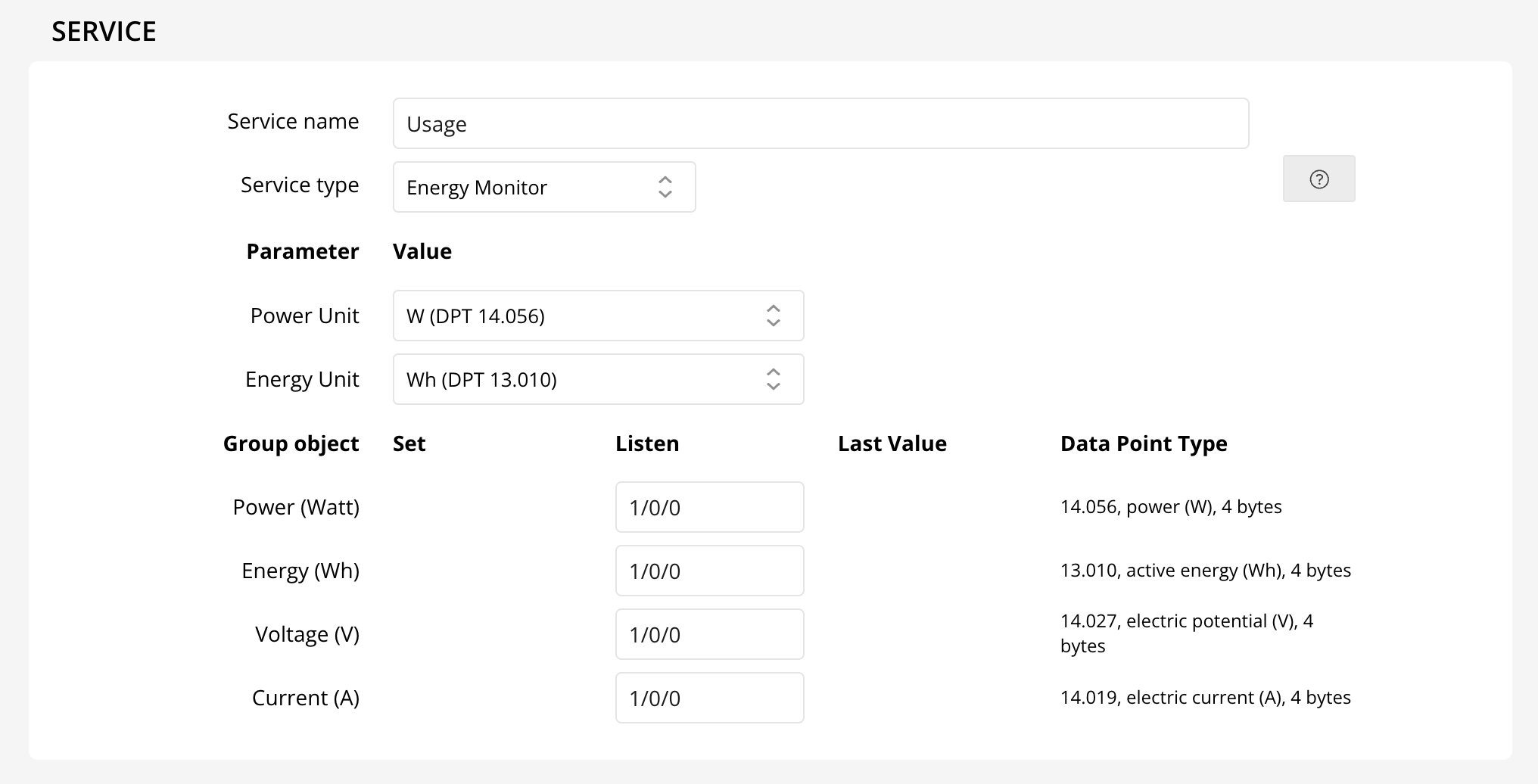
Setting up your Energy Monitor with Thinka allows you to track essential energy metrics like kWh, Watts, Voltage, and Amperage for smarter energy management.
- Power (Watt): Monitors your current power usage. DataPointType: 14.056
- Energy (kWh): Tracks your total energy consumption. DataPointType: 13.010
- Voltage (V): Displays voltage levels. DataPointType: 14.027
- Current (Amperage): Measures the electrical current. DataPointType: 14.019
To start, add an Accessory to Thinka and select the Energy Monitor service (currently in beta). Enter the group addresses for each value above to enable monitoring.
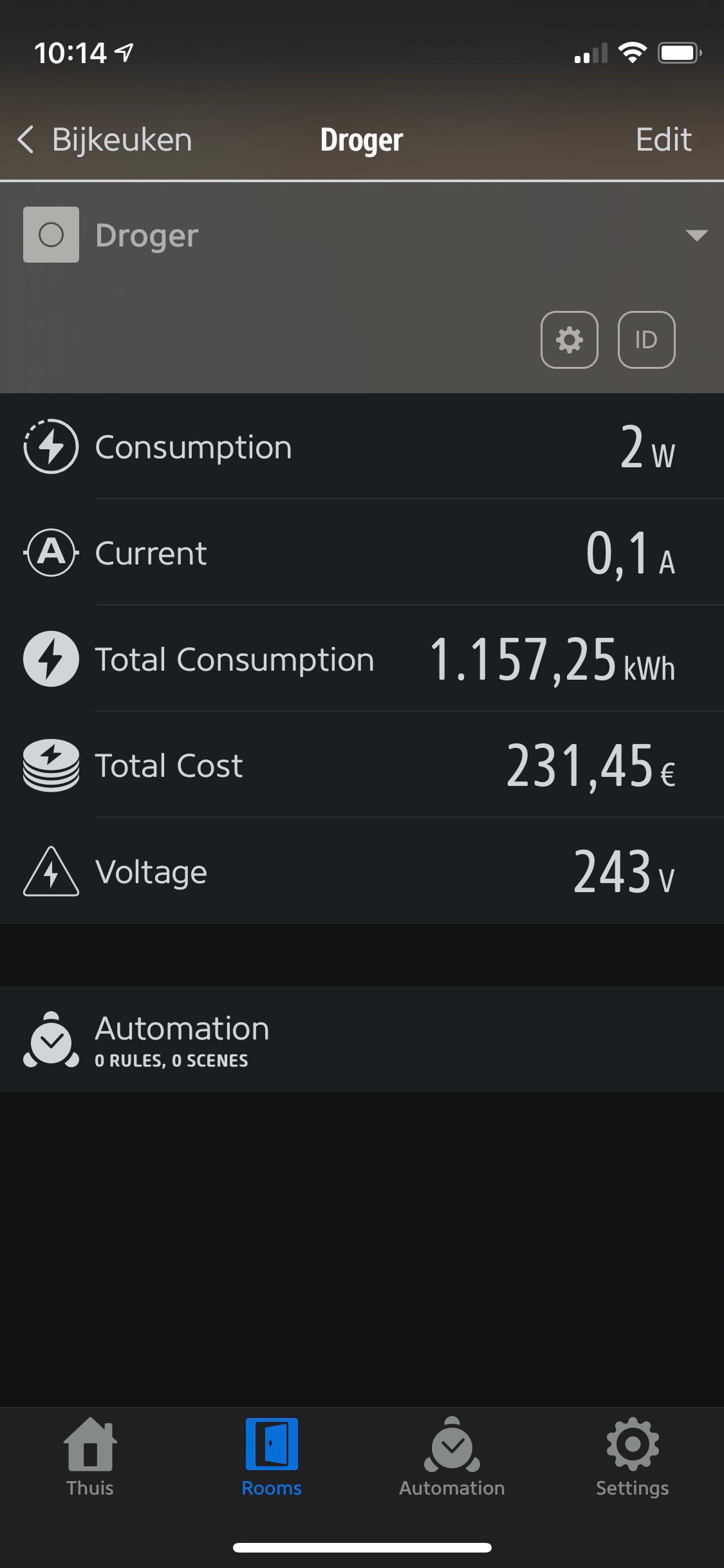
While the Apple Home App may not display these readings, you can view and analyze them via HomeKit apps like Eve. Thinka leverages an advanced feature so you can see real-time data in Eve, and even track costs by configuring your kWh rate.
Here’s how it looks in the Eve app:
Note: The Energy Monitor is part of Thinka’s beta channel features.
Why Am I Seeing a "Synchronization Failed" Message When Syncing Thinka with HomeKit?
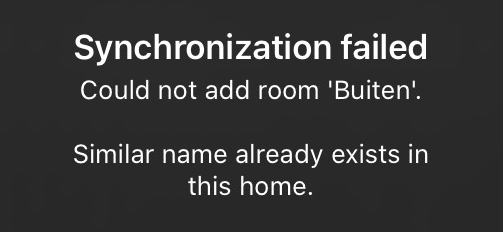
If you receive a "synchronization failed" message while syncing your Thinka with Apple HomeKit, don’t worry—this is a common issue and can usually be resolved quickly. Here’s how you can troubleshoot and successfully connect Thinka to HomeKit:
- Check Your Network: Make sure both your Thinka and your iOS device are connected to the same WiFi network.
- Restart Devices: Try restarting both your Thinka and your iPhone or iPad to refresh the connection.
- Update Software: Ensure that your Thinka and your Apple device have the latest firmware and iOS updates installed.
- Reset HomeKit Setup: If the problem persists, consider resetting your Thinka’s HomeKit pairing and then attempt setup again.
Still having trouble? Contact Thinka Support for expert help. We’re here to ensure your smart home experience is seamless!