Thinka for KNX — FAQ
How to Connect Your Thinka to Google Home: A Step-by-Step Guide
Integrate your Thinka smart home hub seamlessly with Google Home for convenient voice control and automation. Follow these simple steps to get started:
- Enable Google Home: Open the settings page on your Thinka and activate Google Home integration. This securely connects your Thinka to Google via the Thinka Cloud.
- Verify Cloud Connection: Ensure your Thinka is successfully linked to the Thinka Cloud.
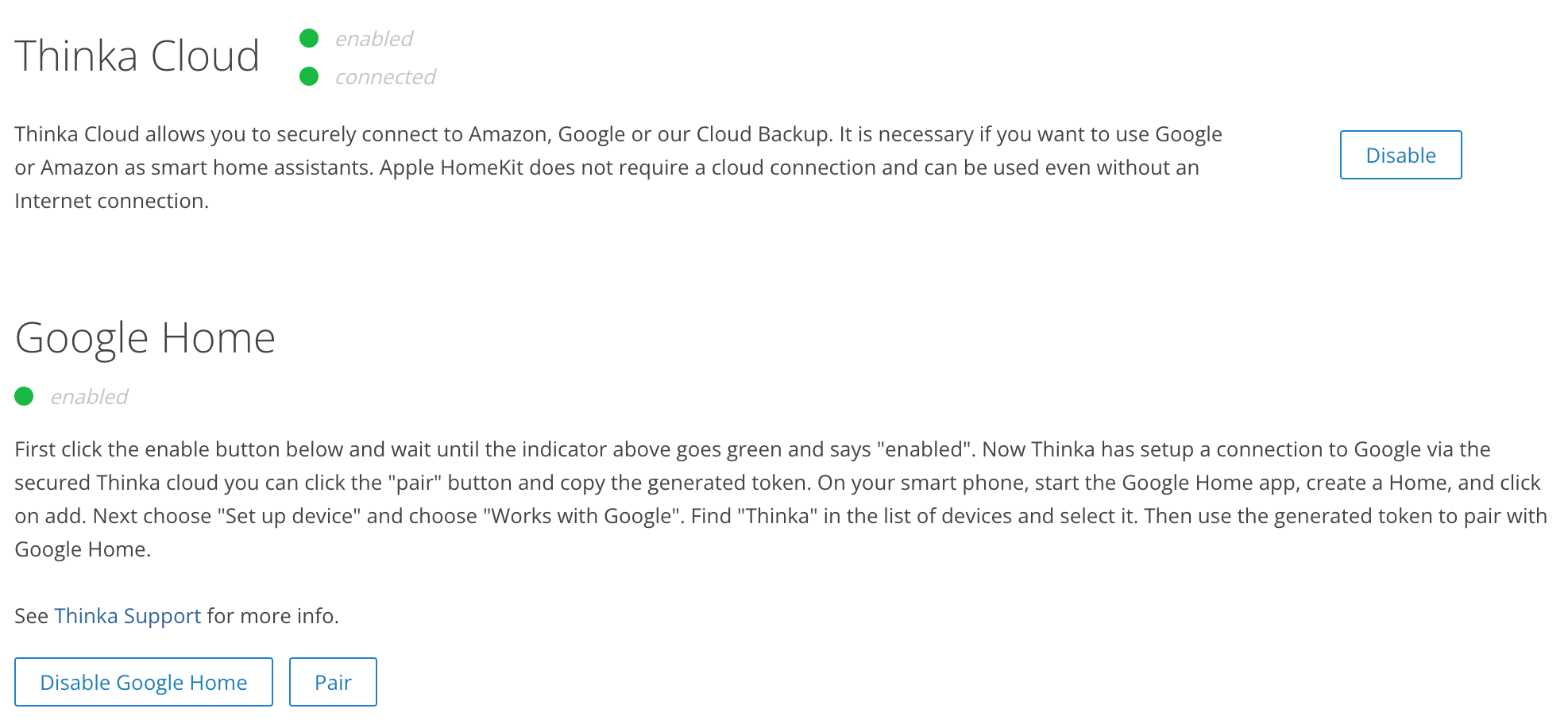
- Pair Your Devices: Click the “PAIR” button on Thinka and copy the generated token.
- Set Up Google Home App: On your smartphone, open the Google Home app. Create your account and Home. For details, visit Google Support.
- Important: Use a regular Gmail account (not G-Suite) to avoid compatibility issues.
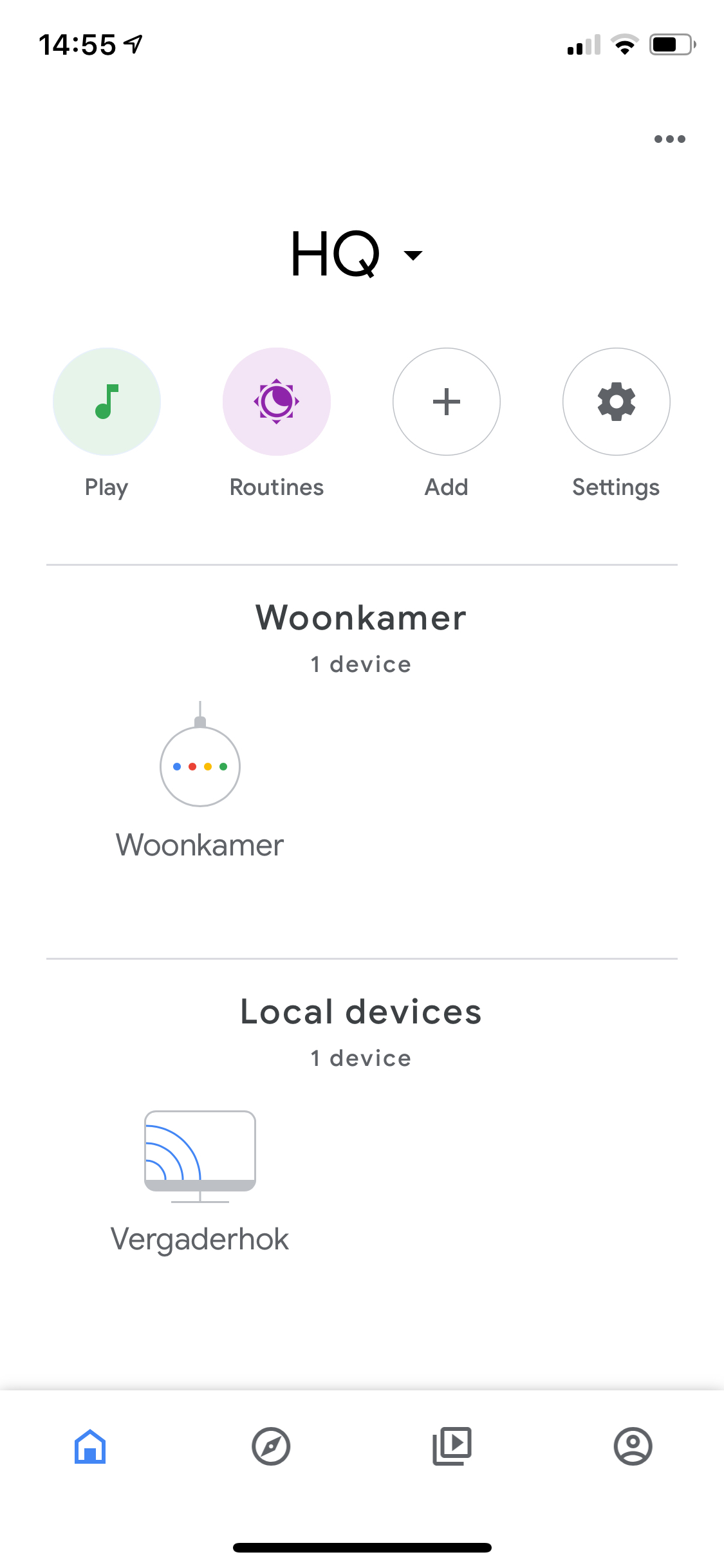 Click on add.
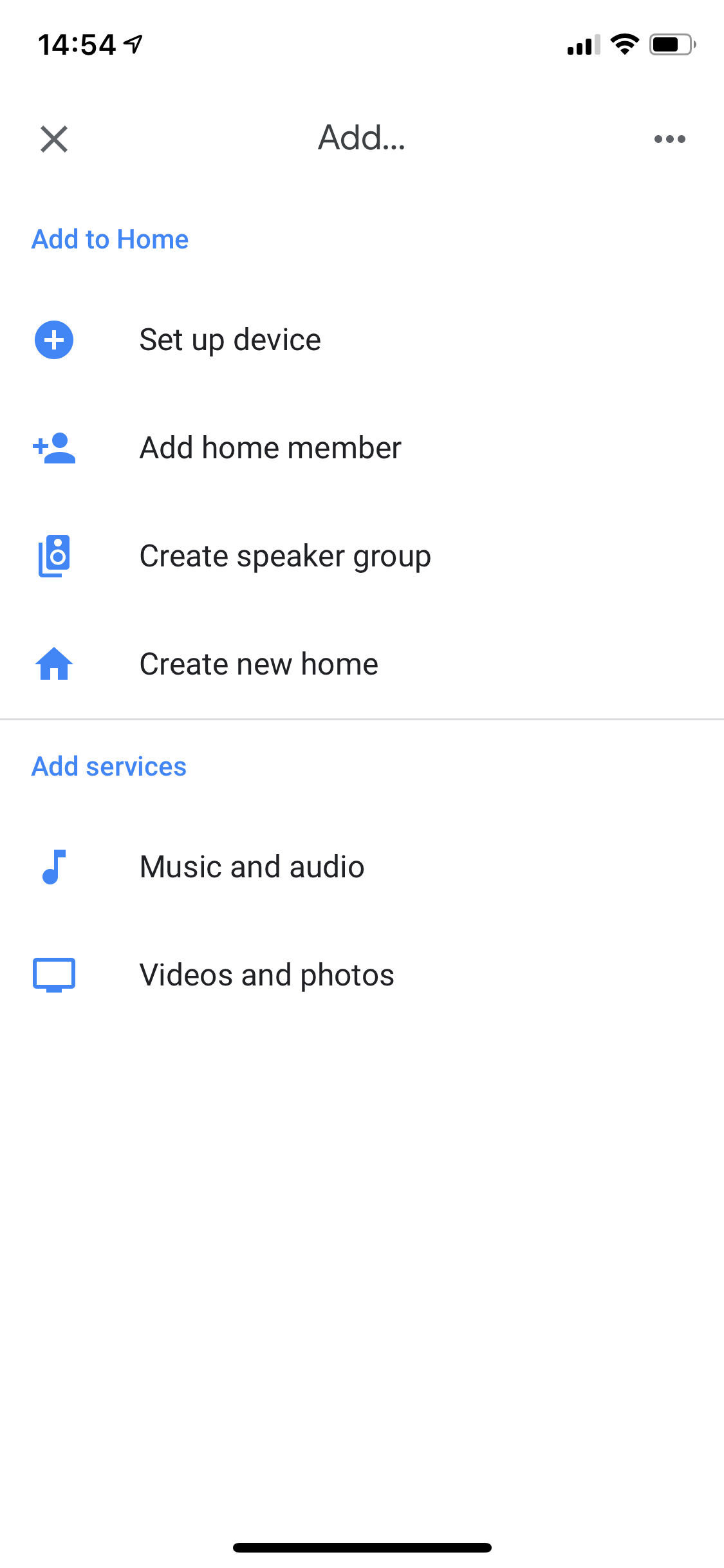 Next choose "Set up device".
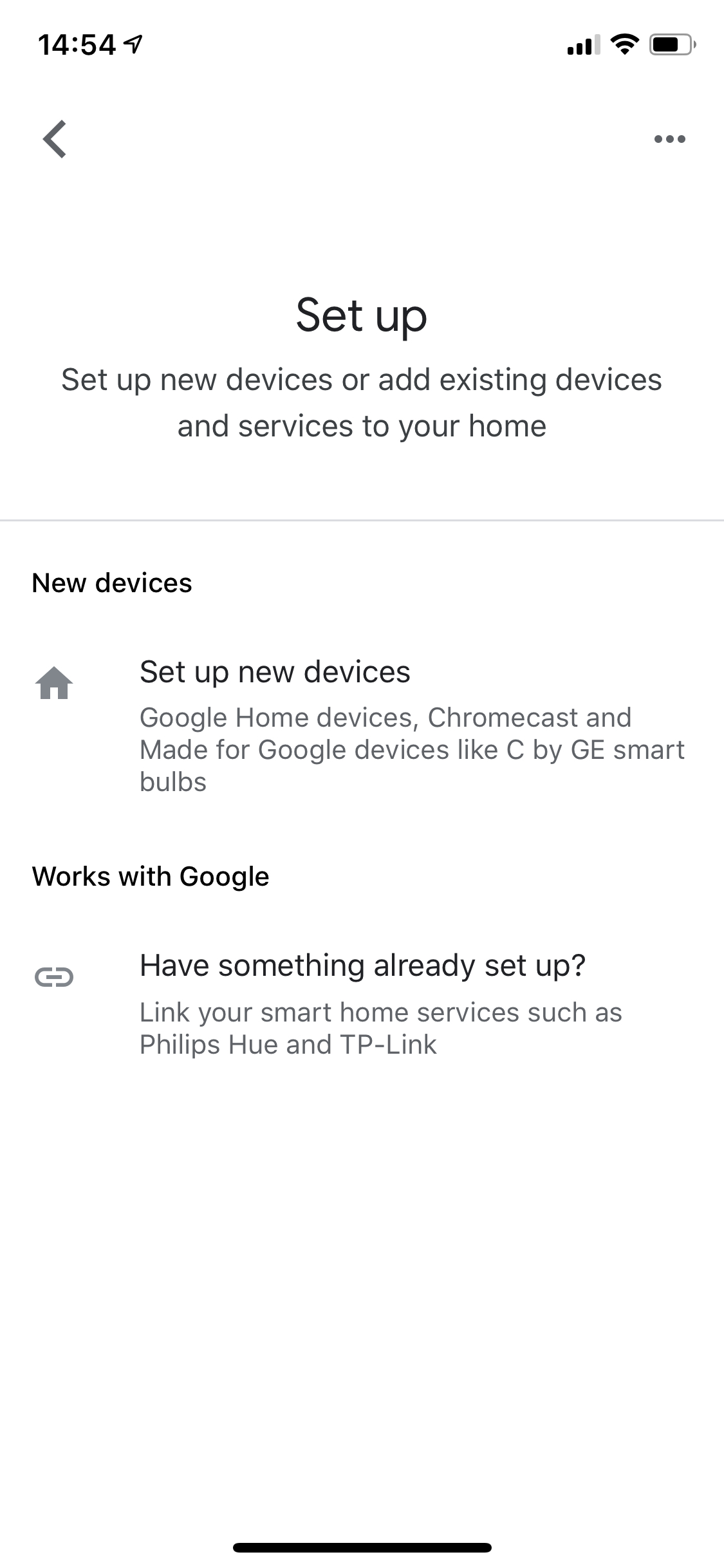 Choose "Works with Google".
- Select Thinka: Find "Thinka" in the device list and select it.
- Pair with Google Home: Enter your token to complete the connection and enjoy your smart home experience!
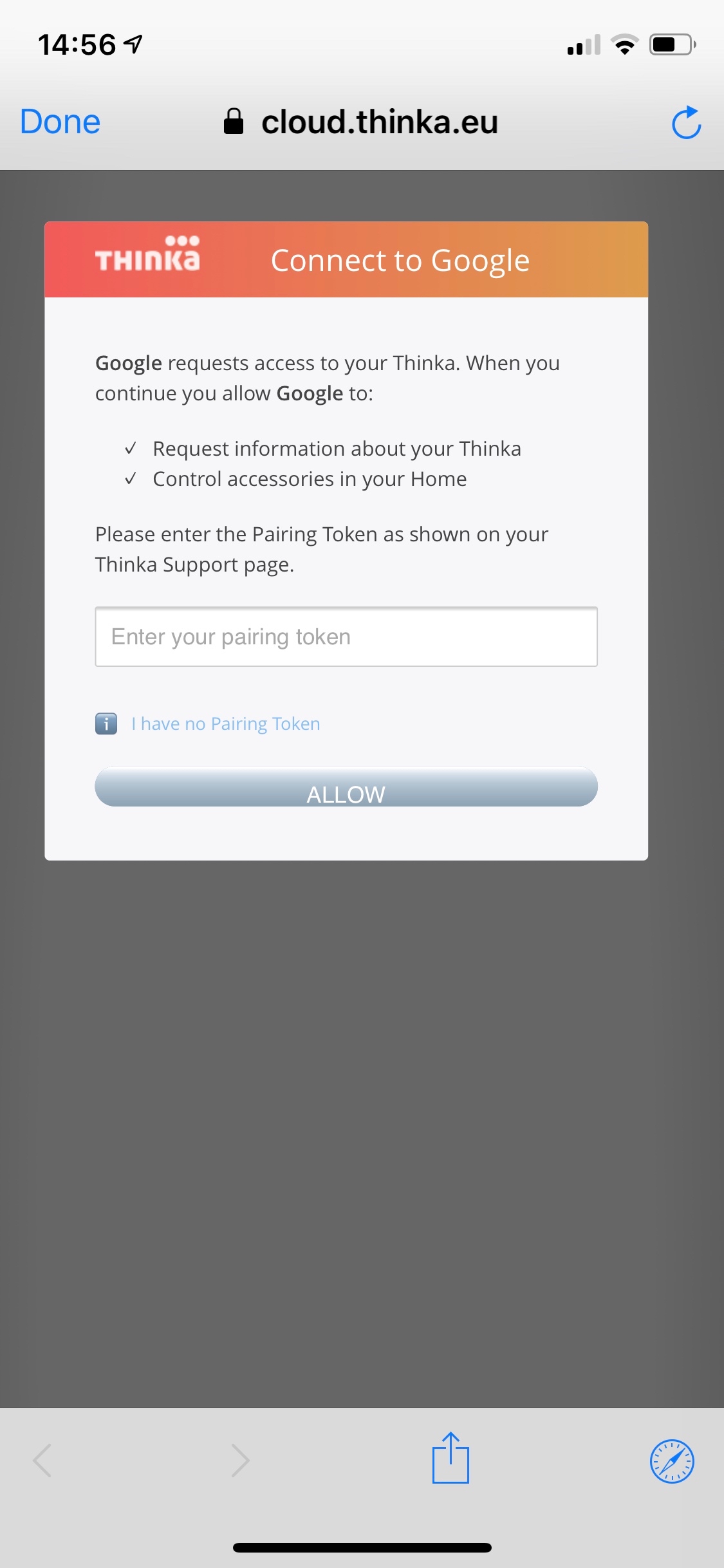
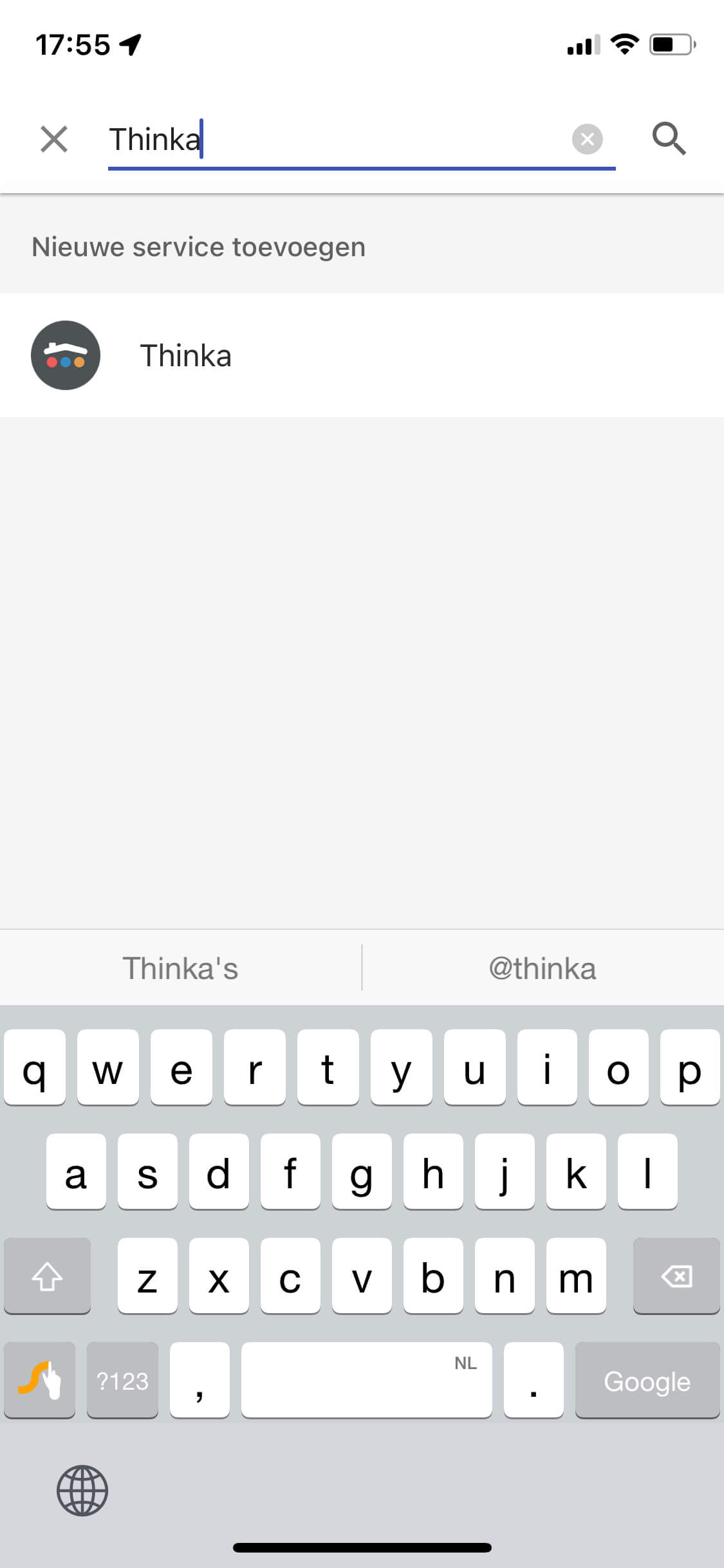
Connecting Thinka to Google Home unlocks effortless voice control and smart home automation. Start today and experience the convenience!
Can I Ask Google for the Temperature of My Heating?
Absolutely! Checking the temperature of your heating is quick and easy with Google Assistant.
- Simply say, "Ok Google" or "Hey Google" to activate your device.
- Ask, "What's the temperature in the Living Room?" or substitute with any room where you have a compatible thermostat or smart sensor installed.
Within seconds, Google will share the current room temperature, so you can stay comfortable and in control of your home’s climate. This convenient feature works with most smart home heating systems linked to your Google Home or Nest devices.
Enjoy effortless temperature updates, perfect for monitoring your home's comfort level anytime. For the best experience, make sure your thermostat is connected to your Google ecosystem.
How do I turn on my lamps?
Turning on your lamps is easy and convenient with Thinka and Google Assistant!
- Step 1: Make sure your lamp is correctly configured in Thinka as a lightbulb. Visit the Lightbulb section in Thinka for detailed setup instructions.
- Step 2: Once your lamp is set up, simply use voice commands with Google Assistant. Try saying:
- “Hey Google, set the floor light to 50 percent”
- “Hey Google, dim the floor light by 20 percent”
With these quick steps, you can easily control your lamps, adjust brightness, and create the perfect atmosphere in your home—all hands-free! Enjoy smart lighting with Thinka and Google Assistant.
How to Easily Set Your Thermostat with Google Assistant
Controlling your home's temperature has never been simpler with Google Assistant and Thinka! To get started, make sure your thermostat is correctly set up in Thinka. You can find detailed setup instructions on our Thermostat support page.
- Just say, "Ok Google, set the temperature to 21 degrees" to instantly adjust the temperature.
- You can also use natural commands like "Ok Google, make it warmer" or "Ok Google, decrease the temperature" for quick changes.
- Enjoy hands-free climate control and keep your home comfortable all year round!
For more voice command examples and tips on using Google Assistant with your smart home, visit the Google Smart Home website.
Discover More Ways to Use Google
Looking for additional ways to make the most out of Google? Explore a wide range of helpful examples and practical tips on the official Google Smart Home website.
- Find easy-to-follow guides for using Google with your smart home devices
- Learn about voice commands, routines, and automation features
- Get inspired by real-life scenarios and creative ideas
Whether you're just getting started or looking to master advanced features, the Google Smart Home website is your go-to resource for step-by-step instructions and expert advice. Unlock the full potential of your Google devices today!
Can I Control My Curtains with the Google Home App?
Looking to control your smart curtains or blinds with the Google Home App? While you may notice a curtain or blinds icon displayed in the app, direct control of your curtains through the Google Home App itself is currently not supported. This means you won’t be able to open or close your curtains by tapping within the app, which can be a limitation for some users.
Good news: You can easily manage your curtains using Google Assistant voice commands. With a simple “Hey Google, open my curtains,” you can enjoy hands-free automation and seamless smart home convenience.
- See the curtain or blinds icon in the Google Home App
- Use Google Assistant for voice control
- Experience effortless smart curtain automation
For step-by-step instructions on how to use Google Assistant for your curtains, check out our detailed FAQ guide.
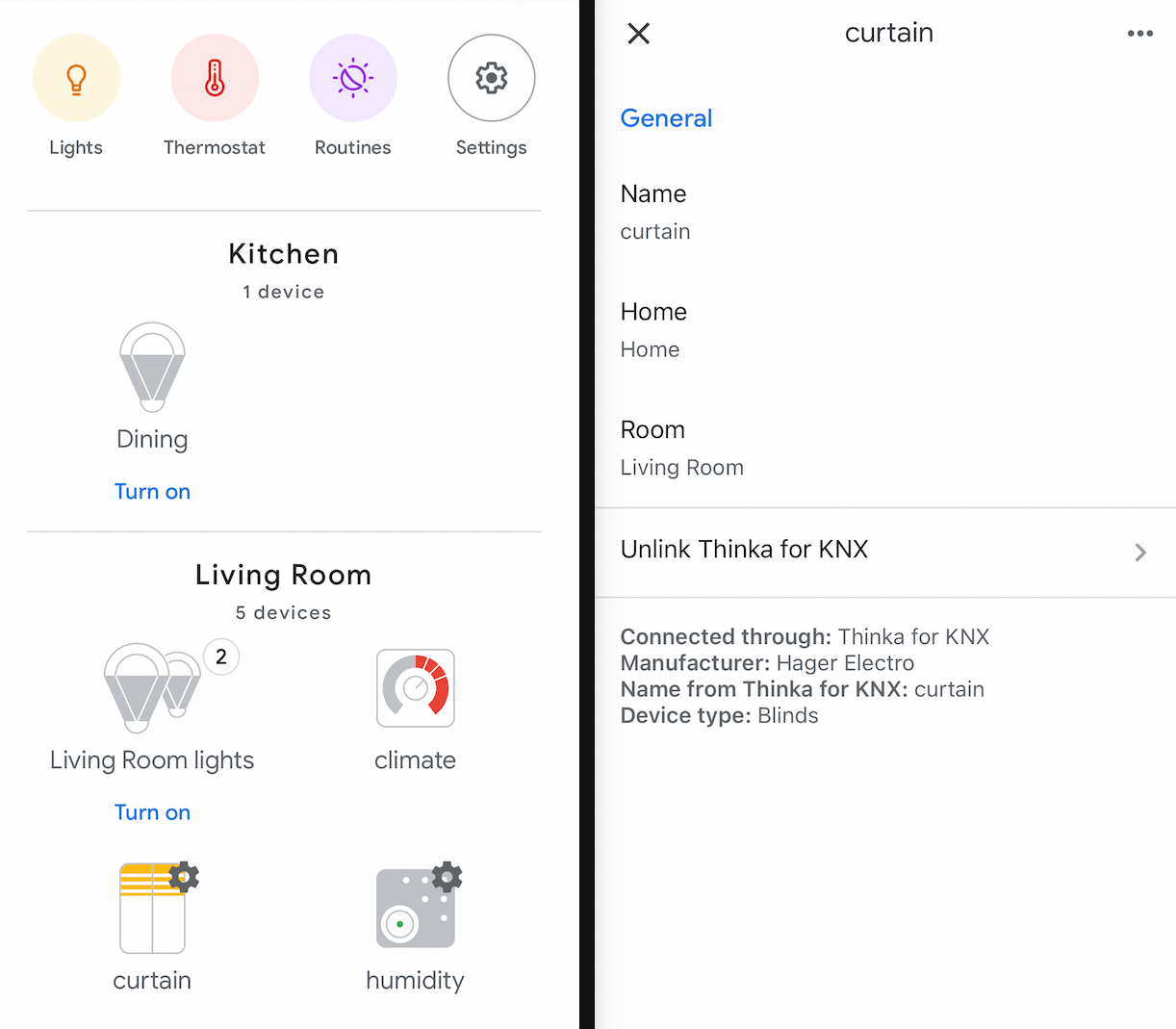
How to Effortlessly Close Your Curtains with Google Assistant
Enjoy the convenience of smart home automation by controlling your curtains using simple voice commands with Google Assistant. No need to get up—just use your voice!
- To fully open your curtains: Say, "Ok Google, open the curtains."
- To partially open your curtains: Say, "Ok Google, set the curtains to 80%," and your curtains will open to your desired level.
- To close your curtains: Simply say, "Ok Google, close the curtains," and watch your curtains close automatically.
With Google Assistant, adjusting your curtains is quick, easy, and hands-free—perfect for creating the perfect ambiance in any room. Experience the ultimate in comfort and smart living by integrating your curtains with Google Assistant today!
Can I Use the Google Home App to Control My Thermostat?
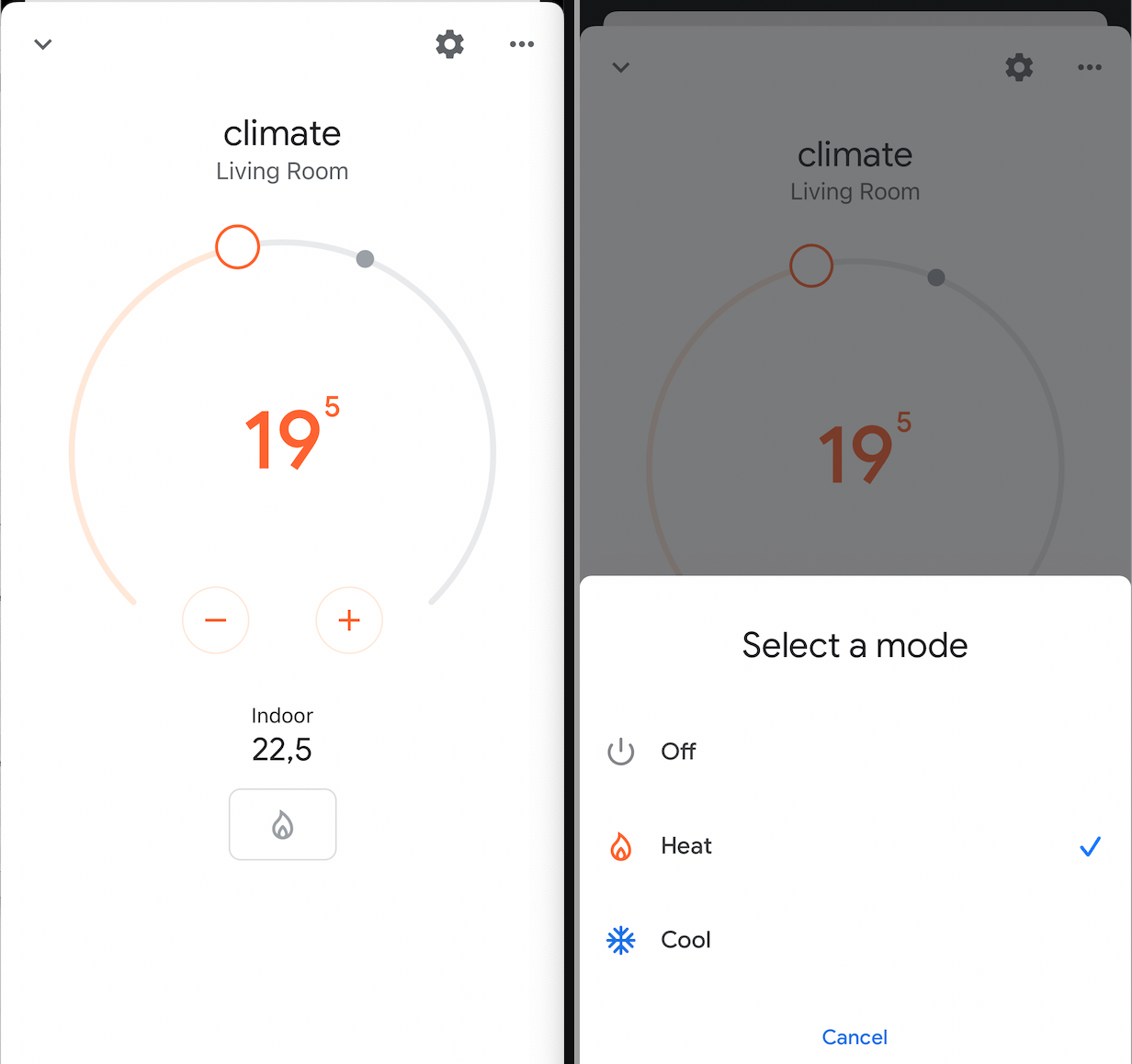
Absolutely! Controlling your thermostat with the Google Home app is simple and convenient. Once you’ve configured your thermostat in Thinka (see our step-by-step guide), you’ll find your thermostat seamlessly integrated in the Google Home app.
This user-friendly app makes it easy to:
- View and adjust your thermostat’s temperature setpoint directly from your phone or tablet
- Select different modes (such as heating or cooling) to match your comfort needs
- Monitor and manage your home's climate at any time, from anywhere
Enjoy a beautifully designed interface that puts smart climate control at your fingertips. Experience the convenience of managing your home’s temperature with just a few taps!
What is the Difference Between Google Assistant and Google Home?
Google Assistant and Google Home are related, but they serve different purposes in the smart home ecosystem.
- Google Assistant is a powerful virtual assistant powered by artificial intelligence. You can use it on many devices—smartphones, tablets, smart speakers, and more—to get answers, set reminders, control smart home devices, play music, and much more, simply by using your voice.
- Google Home refers to a line of smart speakers and smart displays created by Google. These devices come with Google Assistant built-in, allowing you to interact with the virtual assistant hands-free throughout your home.
In summary, Google Assistant is the intelligent software that helps you with daily tasks, while Google Home is the hardware device that brings this assistant to life in your home. Pairing both gives you a seamless, voice-controlled smart home experience.