How do I set up VPN connection to my Thinka device?
KNXHow to Set Up a VPN Connection to Your Thinka Device
Note: VPN setup is available exclusively for the Thinka for KNX Pro.
-
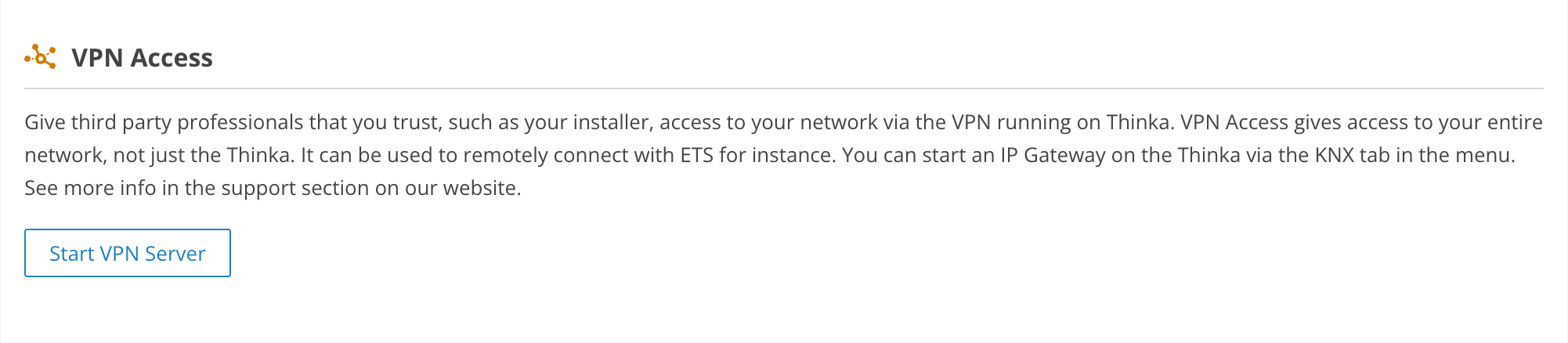
Go to Settings → Remote in your Thinka dashboard. Click the Start VPN Server button.
-
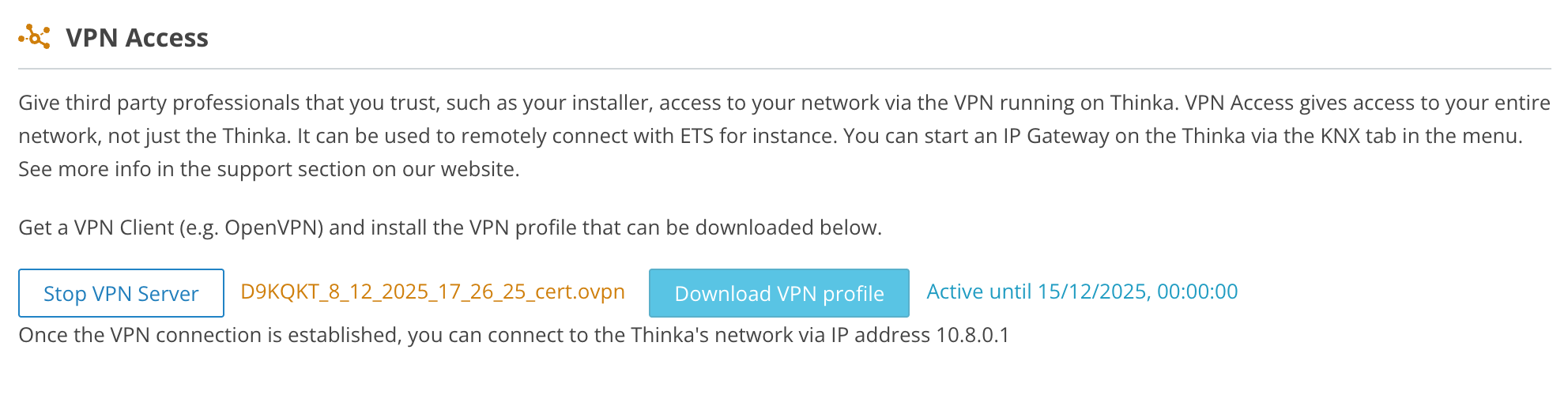
Once the VPN server starts, Thinka automatically generates a client certificate. Download it by clicking Download VPN File.
-
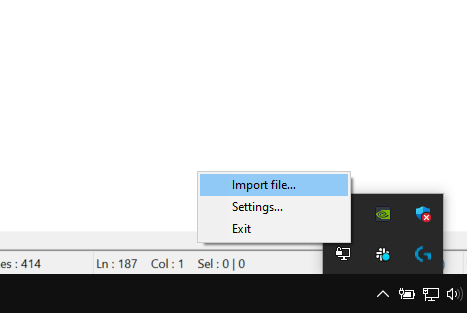
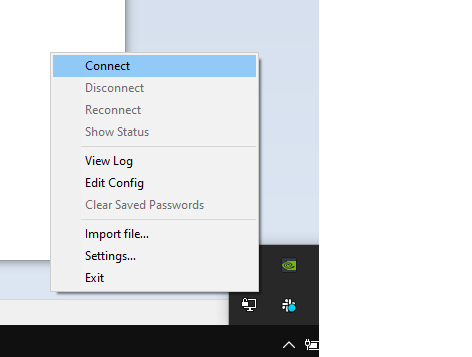
Install a VPN client if needed. Right-click the VPN app icon and select Import file.
-
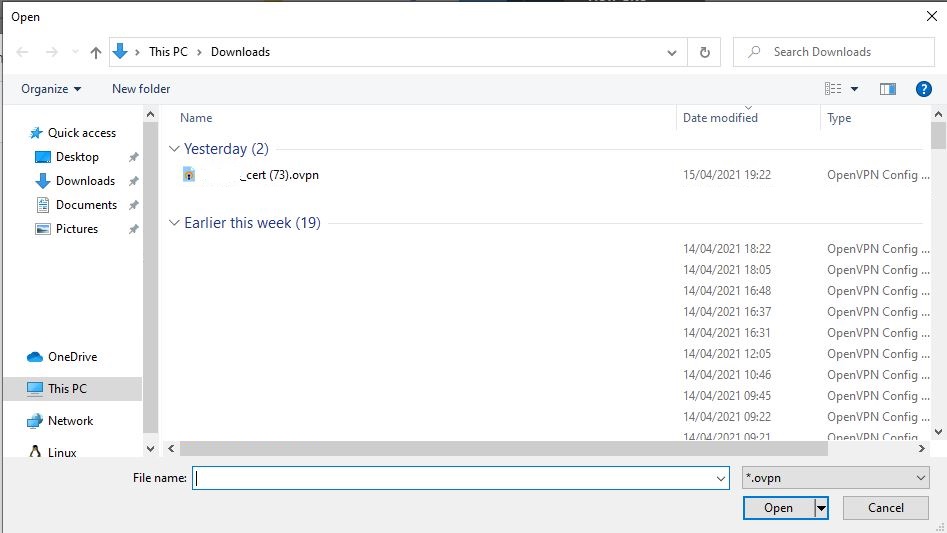
Choose the downloaded client certificate.
-
Open the VPN app again and click Connect.
-
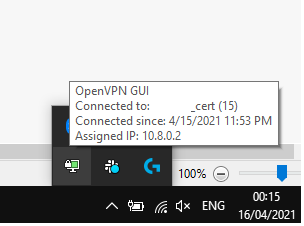
When connected, the icon turns green.
-
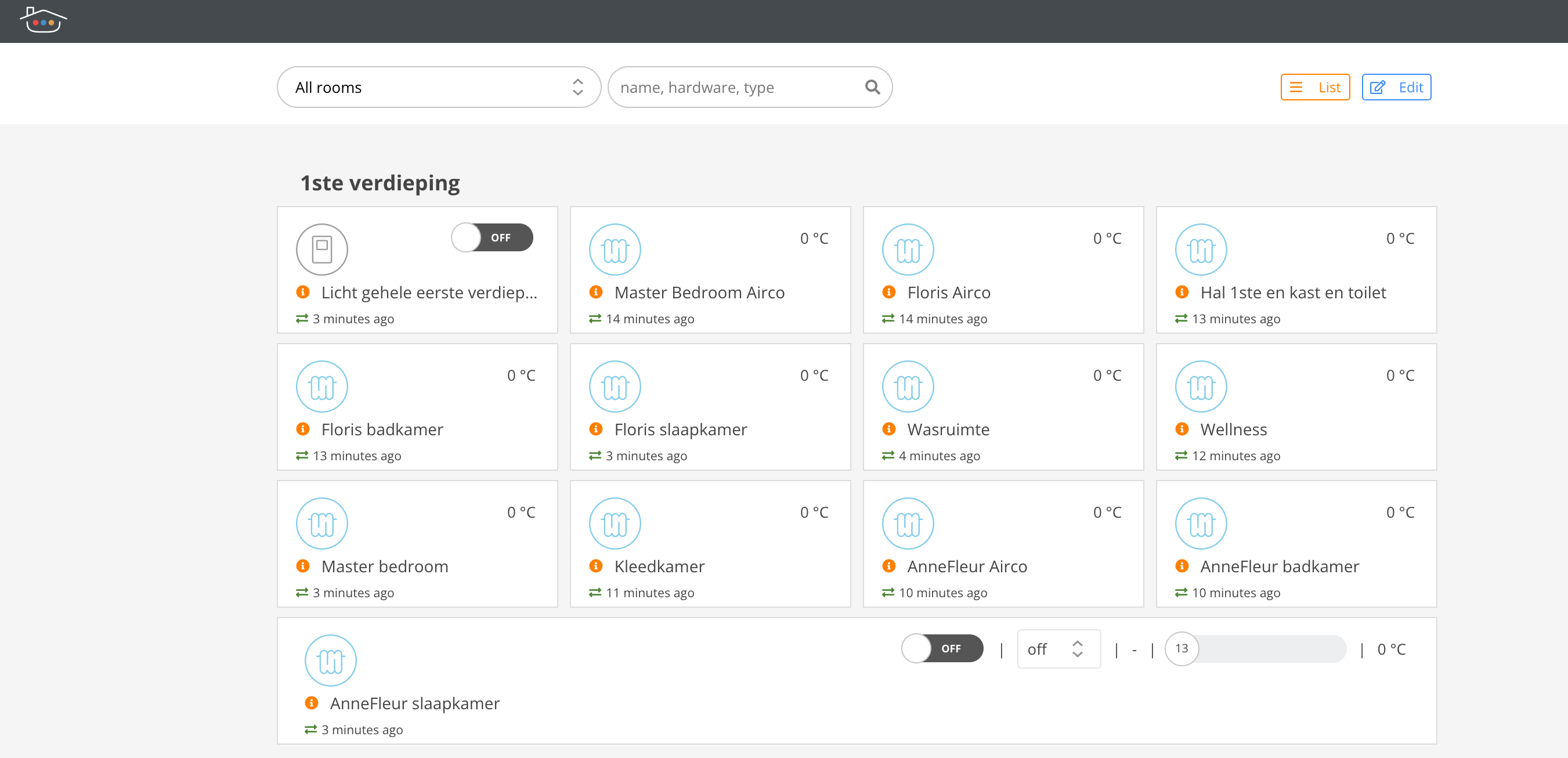
Your computer is now securely connected! Access your Thinka device via IP address 10.8.0.1.
-
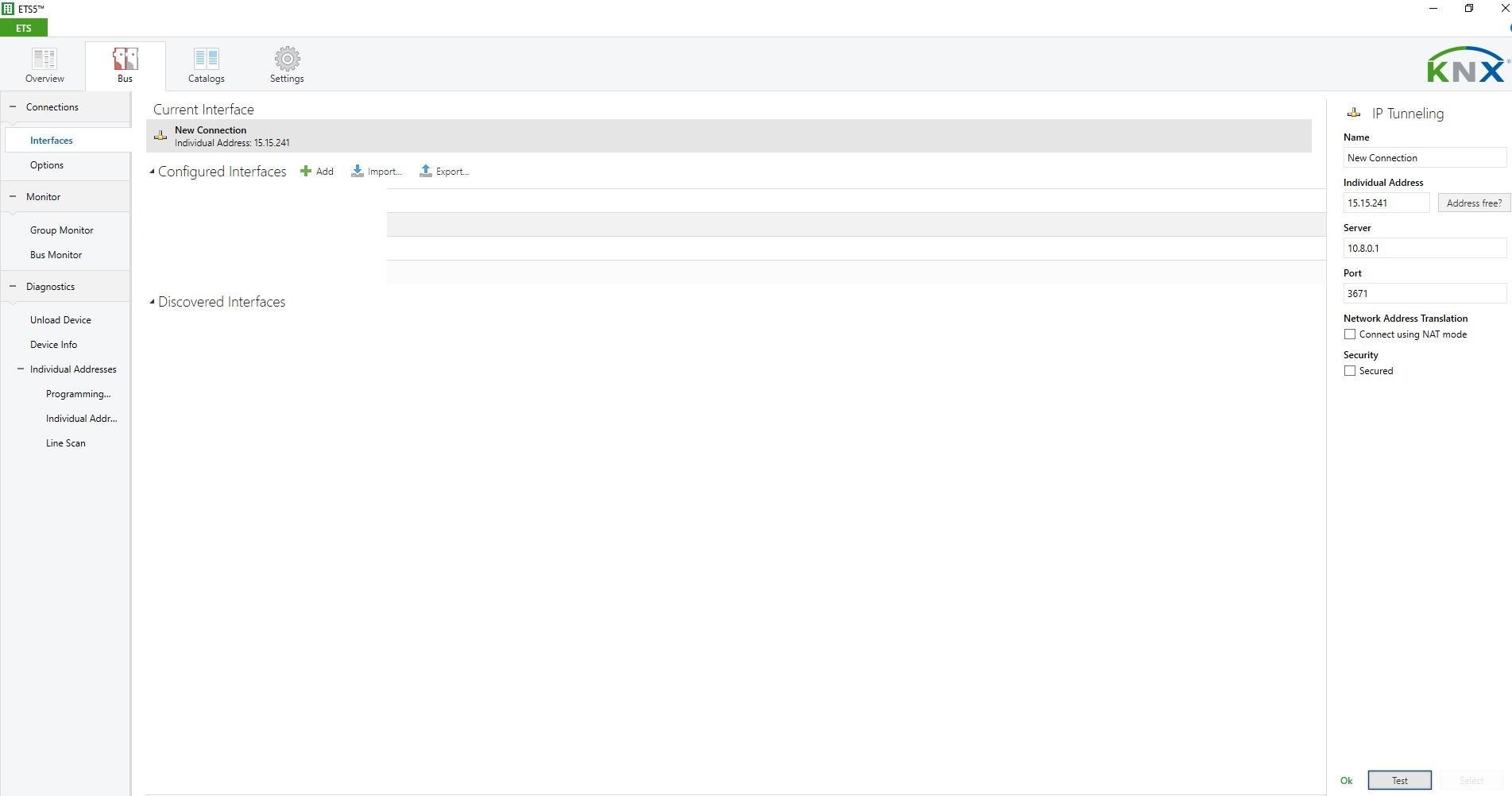
If you use ETS, enable the built-in KNX IP interface and use 10.8.0.1 to access your KNX network.
Enjoy secure and remote access to your Thinka device anytime, anywhere!