How do I install a VPN client?
How to Easily Install a VPN Client (OpenVPN) on Windows
Protect your online privacy and access restricted content in minutes by installing the OpenVPN client on your Windows computer. Follow this simple step-by-step guide:
- Download the OpenVPN Installer: Choose the right installer for your system:
- For most users (64-bit Windows): Download 64-bit version
- For older or 32-bit systems: Download 32-bit version

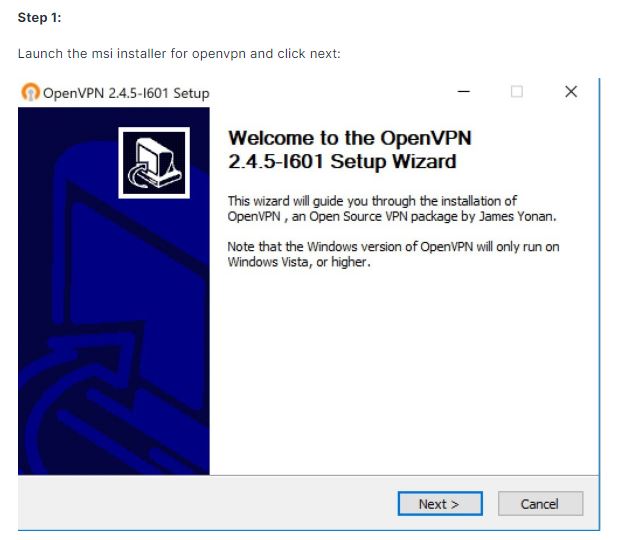
- Run the Installer: Follow the prompts to set up OpenVPN. For detailed instructions, check the official installation guide here.
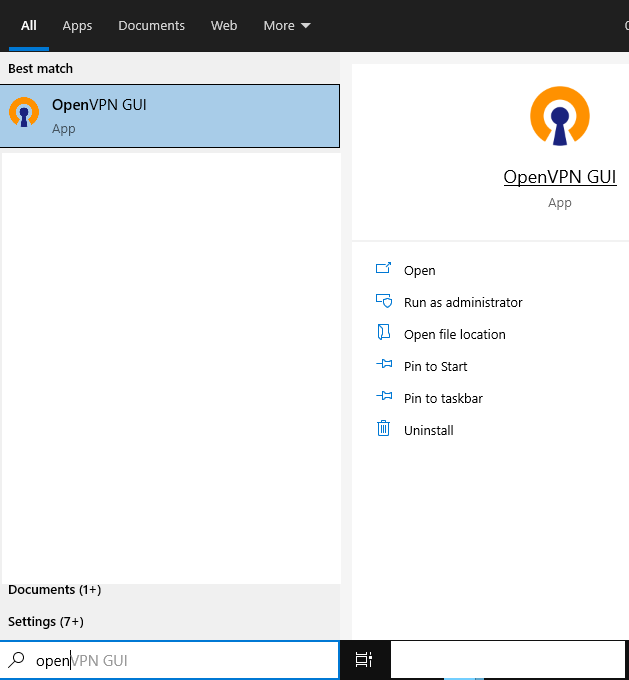
- Launch OpenVPN: After installation, find the OpenVPN icon in your system tray (bottom right of your screen).
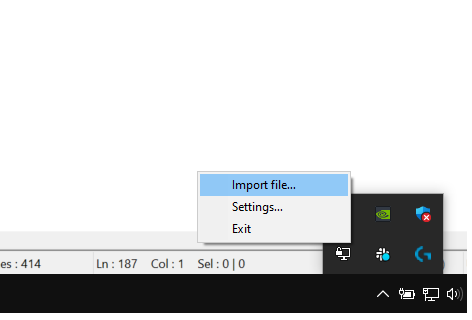
- Import Your VPN Configuration File: Right-click the tray icon and select Import file to add your VPN profile.
You're now ready to enjoy secure and private browsing with your VPN client!