How to configure Google Assistant for Thinka Z-Wave
Z-WaveHow to Configure Google Assistant for Thinka Z-Wave
Setting up Google Assistant with your Thinka Z-Wave is fast and easy! Follow these simple steps to enjoy hands-free control of your smart home devices.
-
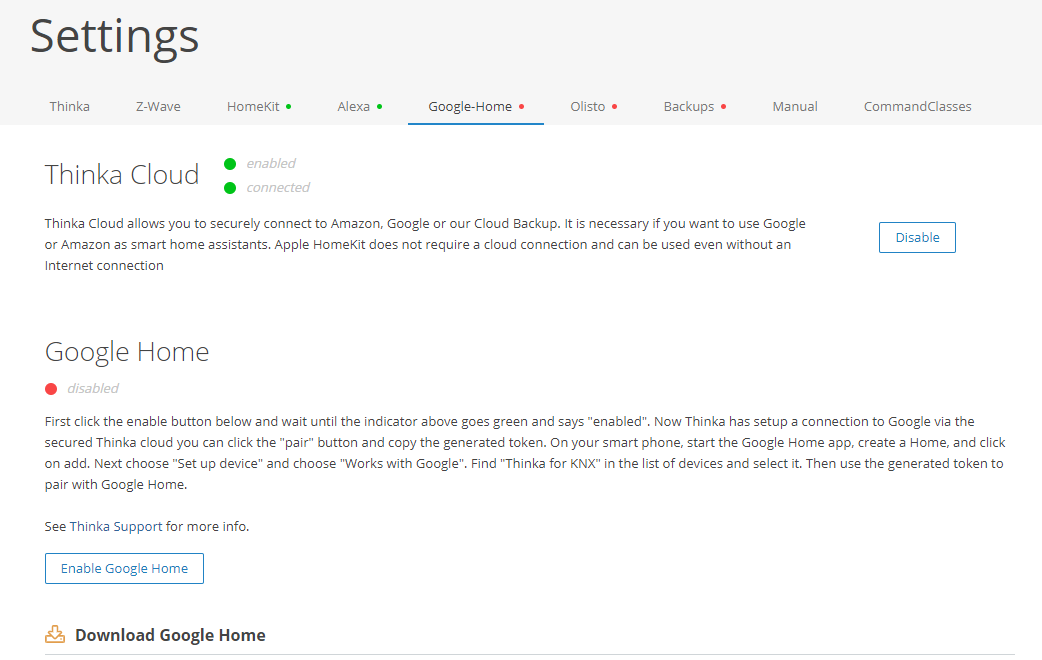
Step 1: Enable Google Home
-
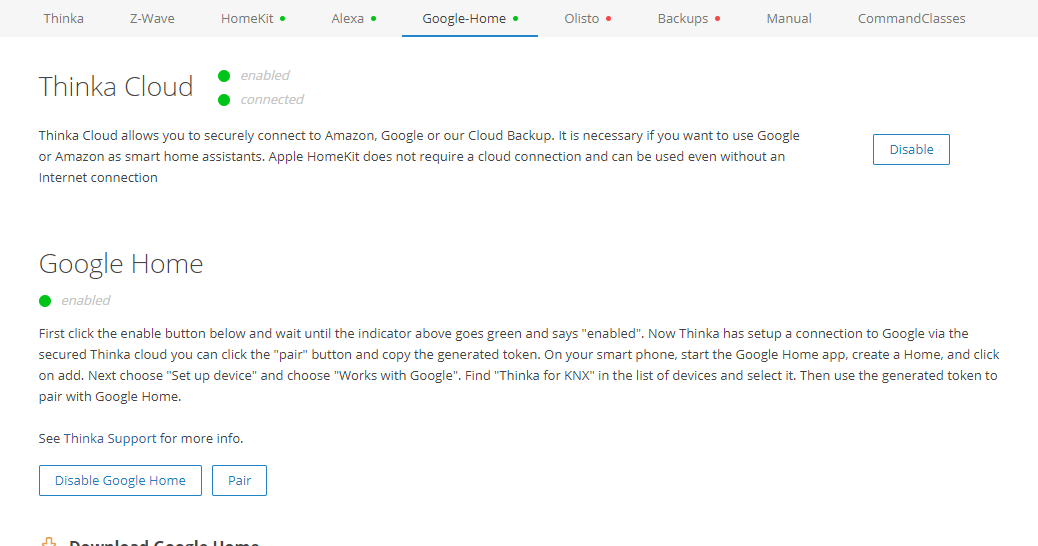
Step 2: Pairing Authorization
Click the "Pair" button on your Thinka Z-Wave interface to generate a secure authorization token.
-
Step 3: Connect with Google Home App
On your smartphone, open the Google Home app. Create a new Home if you don’t have one, then tap “Add” > “Set up device” > “Works with Google”.
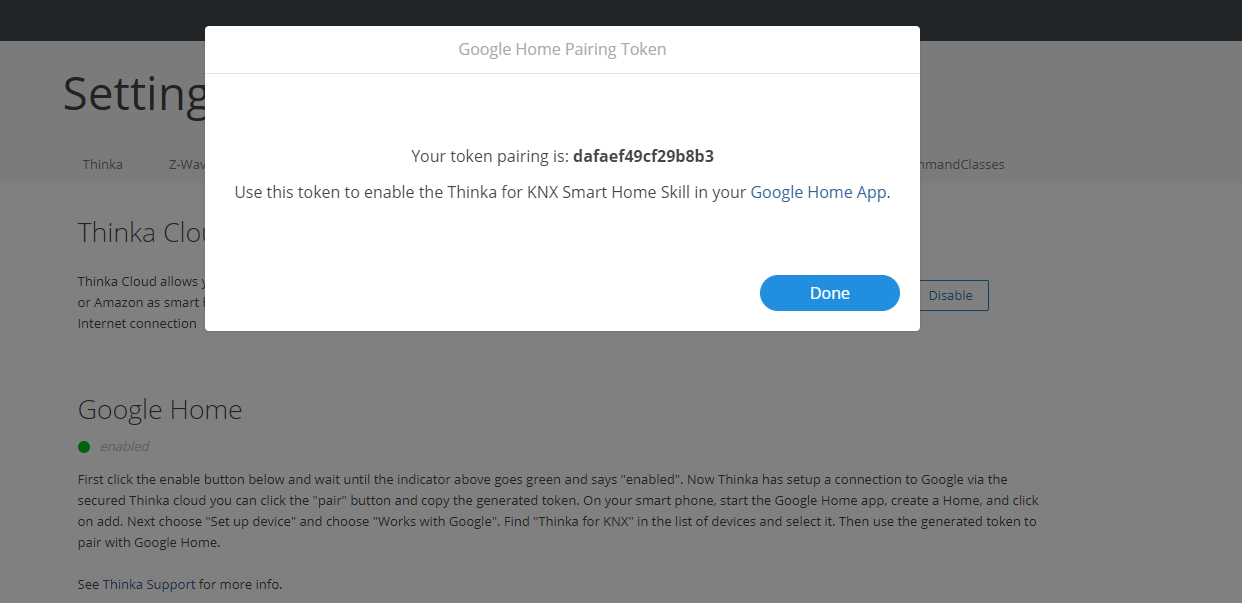
Search for "Thinka" in the device list, select it, and enter your authorization token to pair your Thinka Z-Wave.
Download the Google Home app for Android or iOS to get started.
Enjoy seamless voice control and smart home integration with Thinka Z-Wave and Google Assistant!