How to synchronize rooms and devices on Homekit
Z-WaveHow to Synchronize Rooms and Devices with HomeKit
Keeping your HomeKit setup up-to-date is simple! When you add or remove a Z-Wave device, you'll want to synchronize your devices and rooms to ensure everything works seamlessly with Apple Home. Here’s how you can easily sync your devices using the Thinka App:
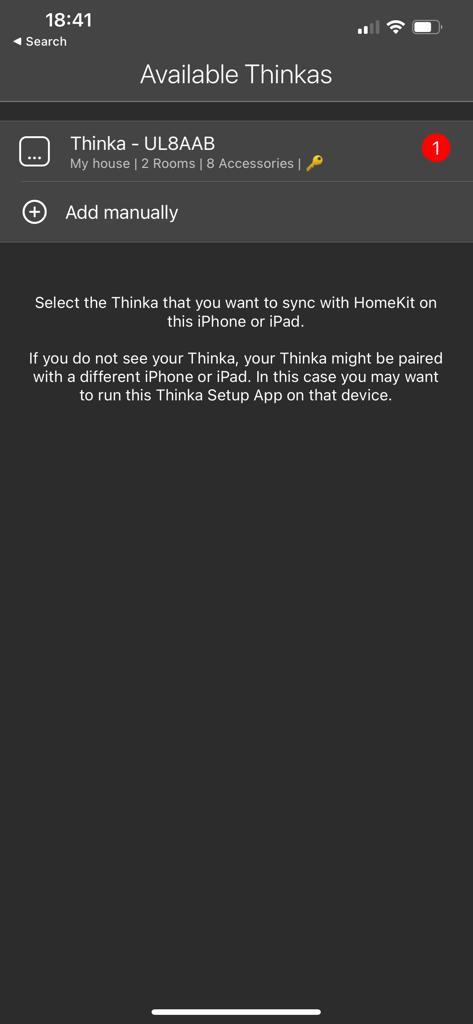
- Open the Thinka App on your smartphone or tablet.
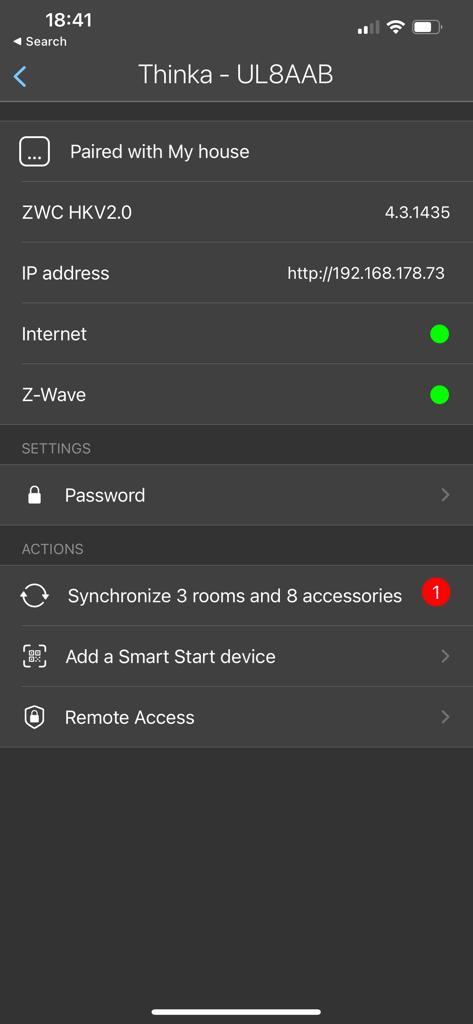
- If synchronization is needed, you’ll notice a red warning icon on the device. This means there are devices or rooms that need to be updated.
- Select the device with the warning and tap the "Synchronize…" button.
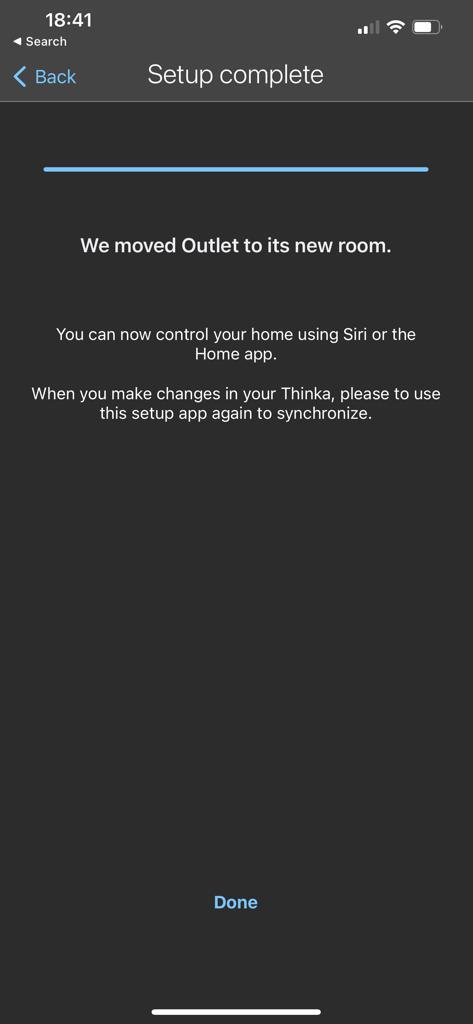
- The Thinka App will automatically synchronize your rooms and devices with Apple HomeKit, ensuring your smart home stays organized and connected.
Follow these steps whenever you make changes to your Z-Wave devices. For your convenience, here are helpful images to guide you through the process:
Enjoy a fully synchronized smart home with Thinka and Apple HomeKit!