How to include a SmartStart Z-Wave device
Z-WaveHow to Easily Include a SmartStart Z-Wave Device
Adding your SmartStart Z-Wave device is quick and effortless! If your device supports SmartStart, simply look for the QR code on the box or the device itself. To get started, download the Thinka Setup app from the App Store or the Google Play Store for Android.
Once installed, open the app, select your Thinka hub, and enter your password if prompted. Then, follow the steps below for your device:
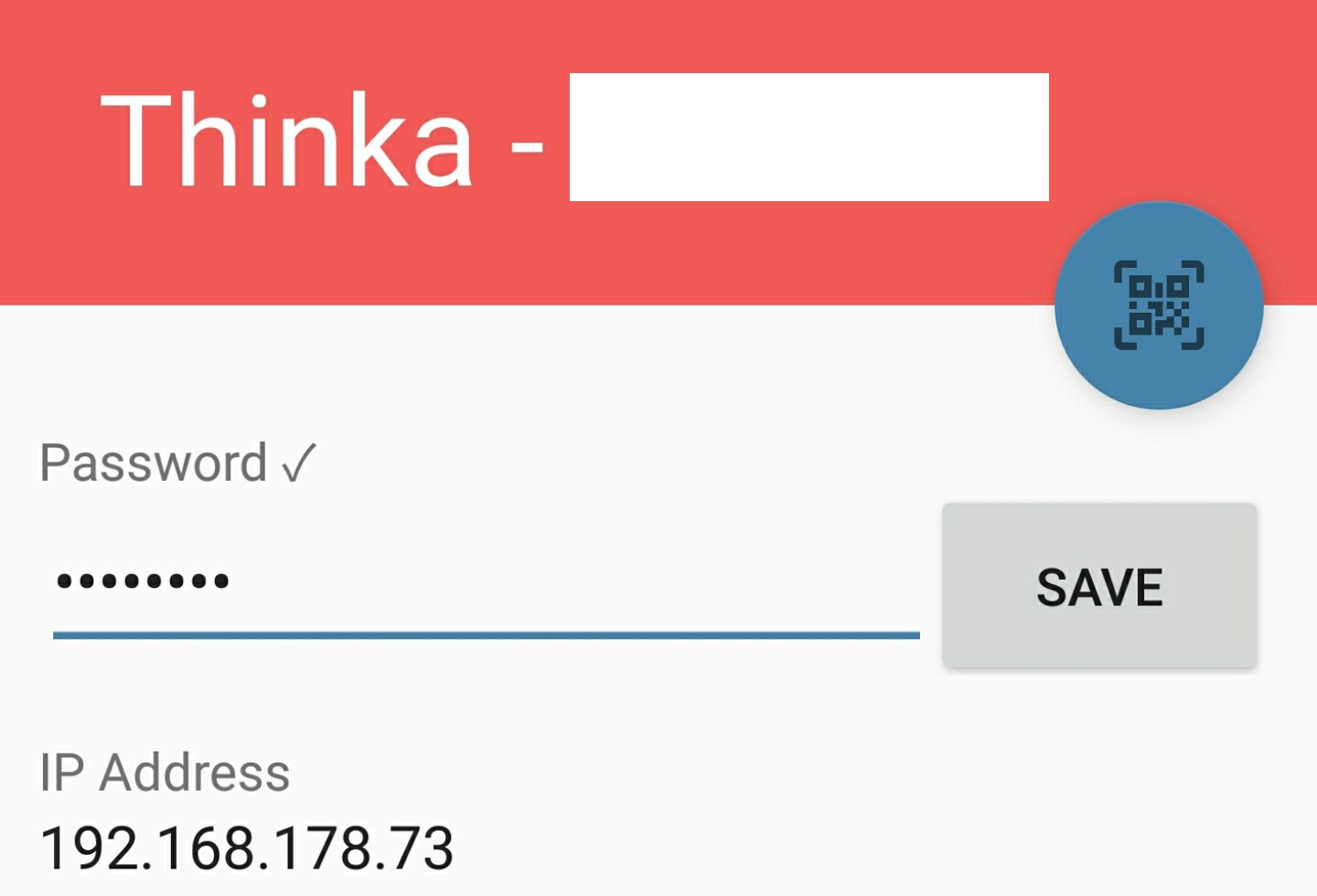
For Android Devices
- Tap the QR scan icon in the app.
- Scan the QR code found on your device or its packaging.
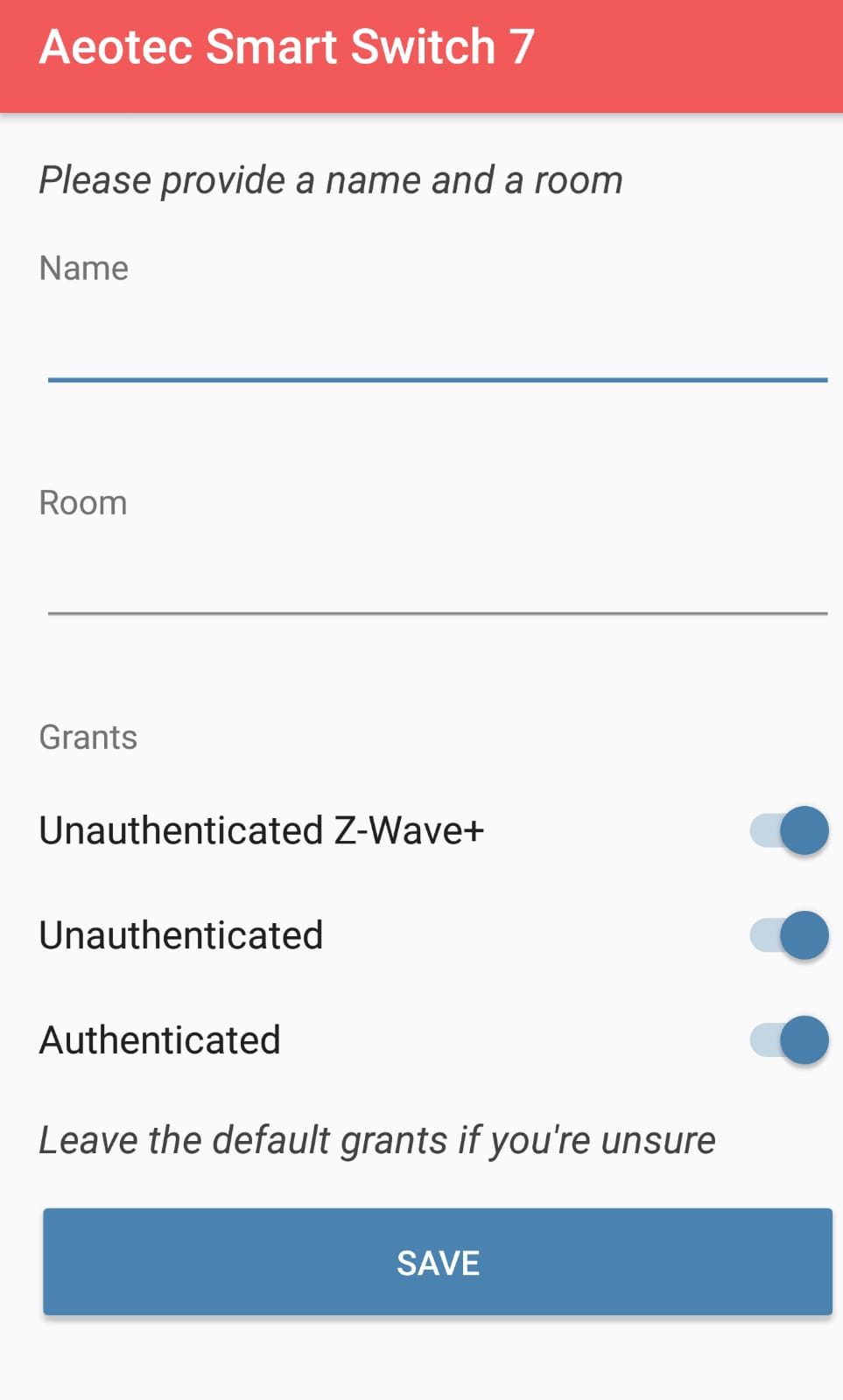
- Name your device and assign it to a room for easy management.
For iOS Devices
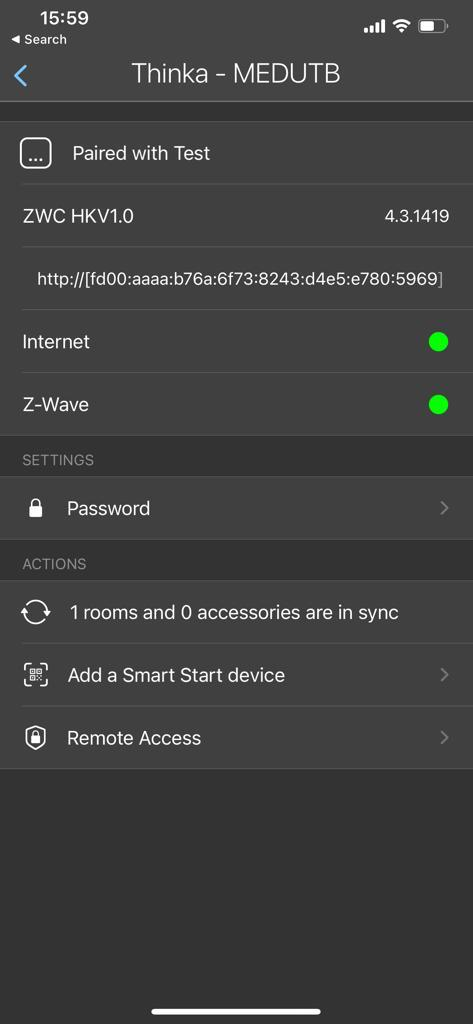
- Select "Add a SmartStart device" in the app.
- Scan the QR code on the box or device.
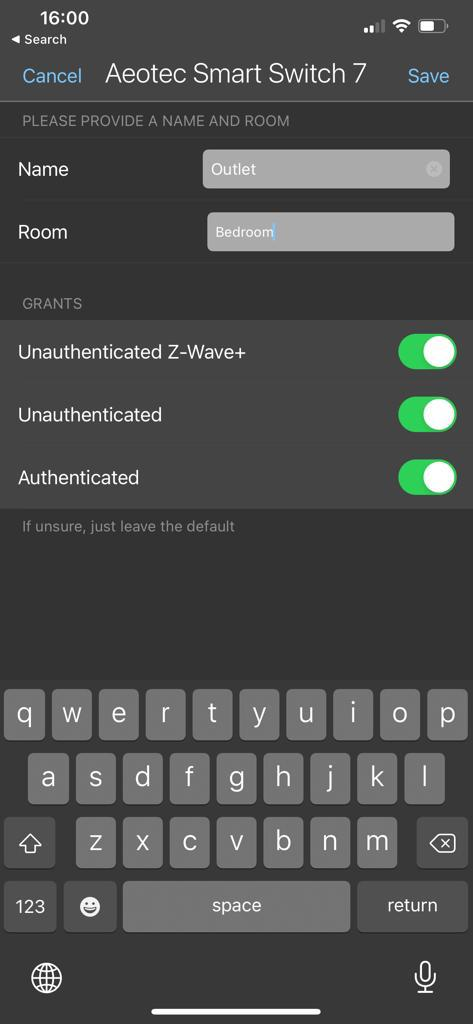
- Name your device and choose a room.
Enjoy seamless Z-Wave integration with Thinka’s SmartStart feature!