How do I give my system integrator remote web access to my Thinka Z-Wave?
Z-WaveHow to Give Your System Integrator Remote Web Access to Your Thinka Z-Wave
Granting your installer secure remote access to your Thinka Z-Wave is simple and convenient. Follow these easy steps to enable Installer Support and ensure your integrator can provide you with the best service:
- Log in to your Thinka Z-Wave web interface.
- Click the settings icon located on the right side of the page.
- Navigate to the Thinka tab.
- Scroll down and select Start Remote Web Access.
- A unique link (URL) will be generated. Click Copy URL to copy the link to your clipboard.
- Share this URL securely with your installer via email, WhatsApp, or your preferred method.
- If your Thinka has a password, either share it with your installer or temporarily remove it for easier access.
Important: Treat your access link and password with care—anyone with this information can access your Thinka web interface. You can revoke access at any time, and for your security, remote access is automatically revoked after 14 days. Each time you enable access, a new unique URL will be created.
See the images below for a visual guide:
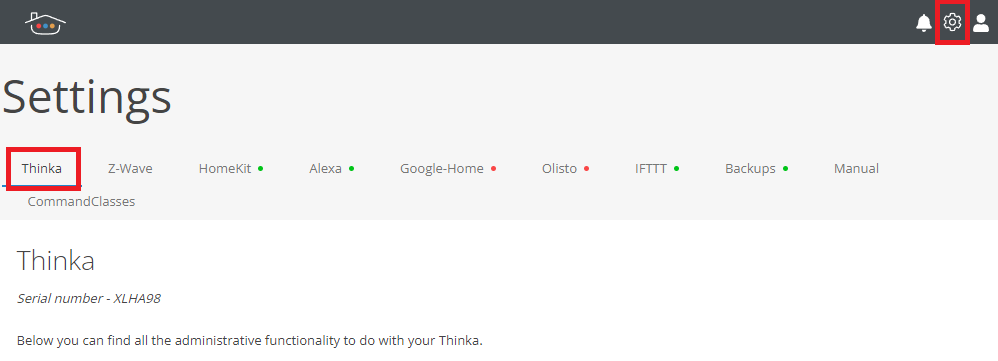
Click settings icon and go to 'Thinka' tab
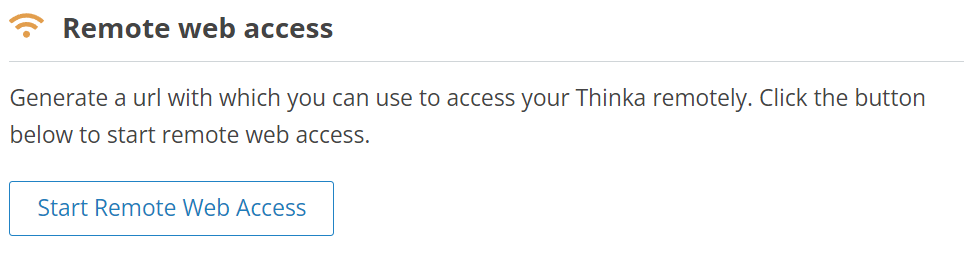
Click 'Start Remote Web Access'
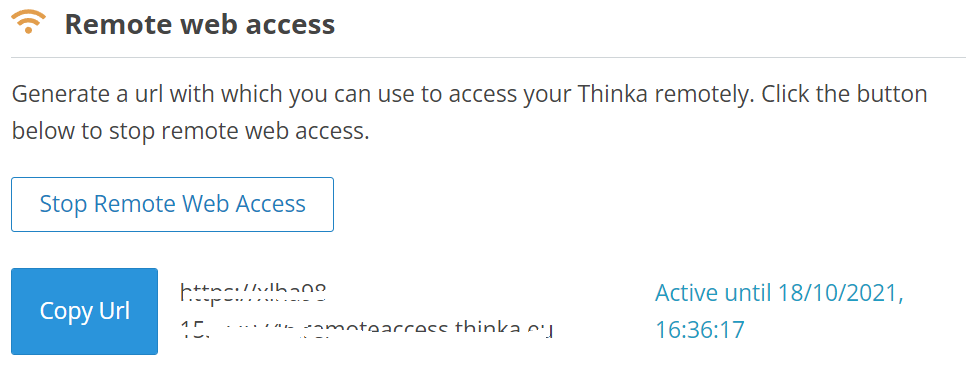
Click 'Copy Url' to copy the link to clipboard. Now you can share this link with your installer.