How do I configure my window covering?
KNXNote: window coverings are shown as a switch in Alexa. Turn the switch off (0%) to fully close the window covering. Turn the switch on (100%) to fully open. Window coverings can only be controlled by voice for Google Home, this is a limitation of the Google Home app. Slat position is currently not supported in Alexa and Google.
Use the window covering service for anything that covers the windows: blinds, shades, curtains, sun screens, etc. This service works best when your KNX actuator provides a status object for the window covering’s current position (0-100%).
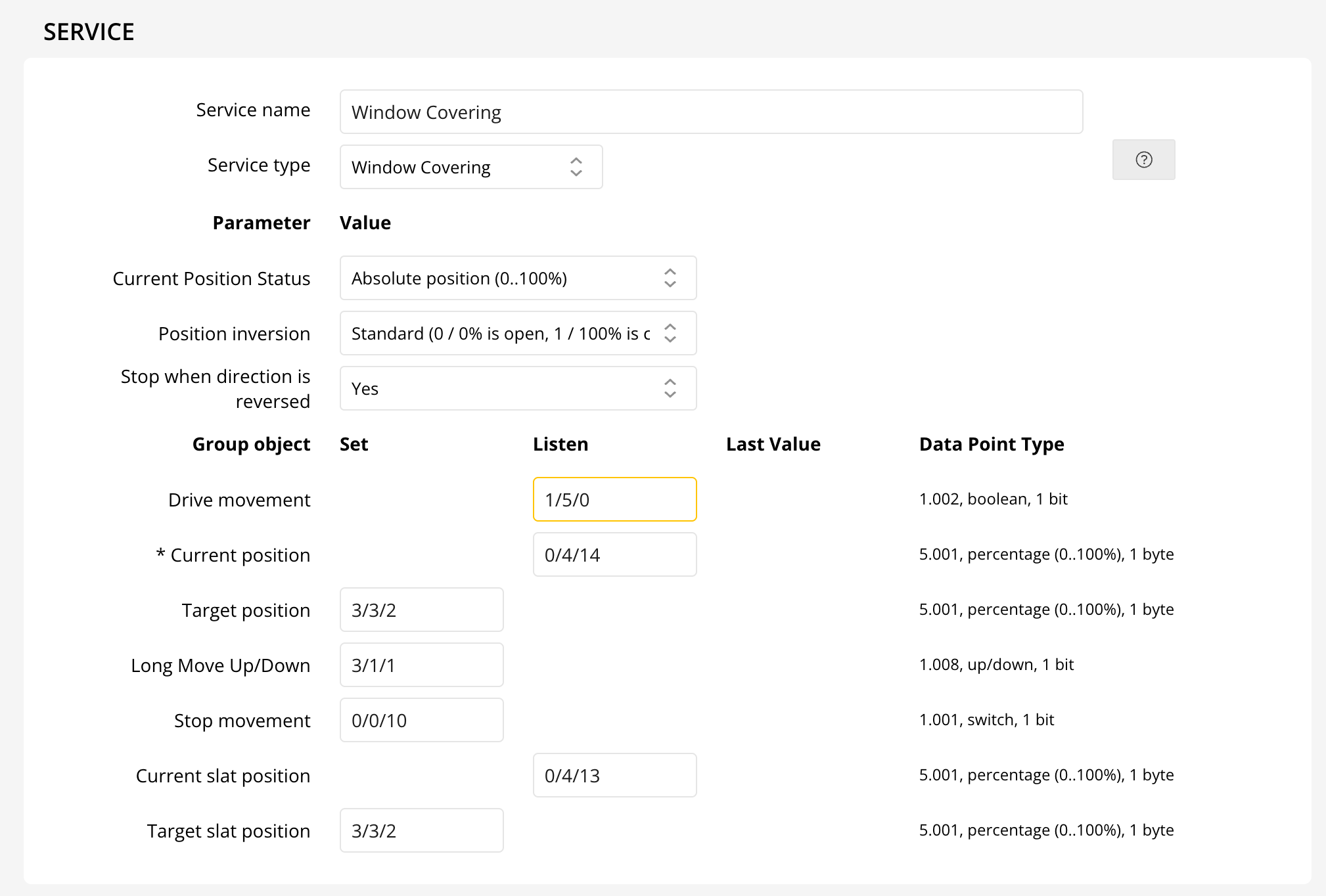
Window covering actuator with position status object
Select "Absolute Position (0..100%)" for the "Current Position Status" parameter. Enter the group address of the current position status object and either the target position group object (1-byte, 0-100%) or the long move up/down (1-bit, up/down) group address. In the latter case you will only be able to fully open or close the window covering.
For blinds with slats you must also provide the current and target slat position (both 0-100%) group addresses.
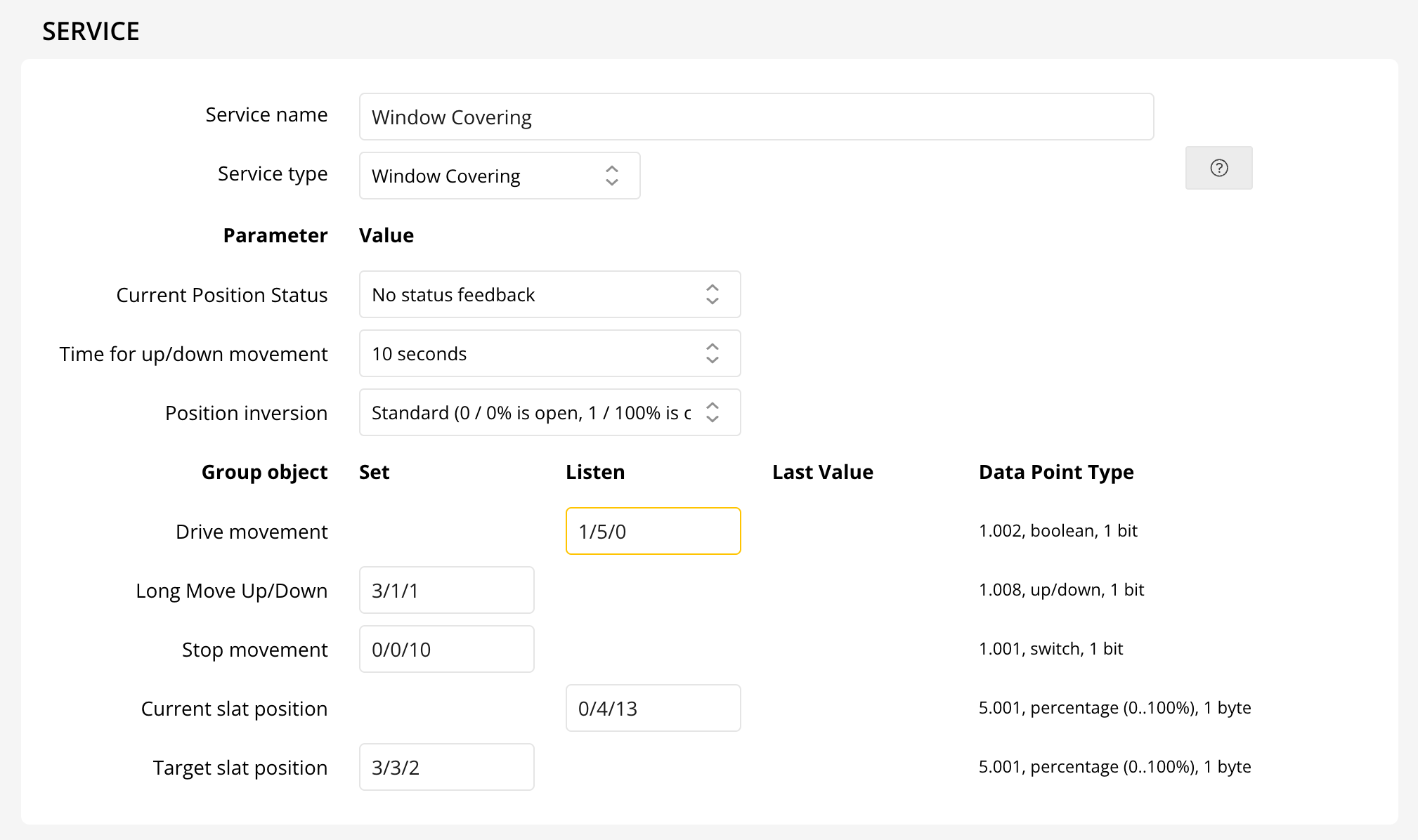
Window covering actuator without position status object
When no postion status object is available you can still control the window covering from Thinka. However, you can only fully open or close the window covering. To configure this, select the "No status feedback" option for the "Current Position Status" parameter. Select the approximate time it takes to fully open or close the window covering for the "Time for up/down movement" parameter. This is the time the window covering will be considered in motion when opening or closing. Enter the group address of the long move up/down (1-bit, up/down) group address.
For blinds with slats you must also provide the current and target slat position (both 0-100%) group addresses.
Below you can find a short video of the window covering configuration. The video does not yet include the parameter selection options.