How do I configure my thermostat device?
KNXHow to Configure Your Thermostat Device
Setting up your thermostat is simple with our versatile configuration options, supporting multiple climate control modes for your comfort and efficiency.
- Heating Only: Keep your home warm by enabling only the heating function. Easily configure this mode as shown below.
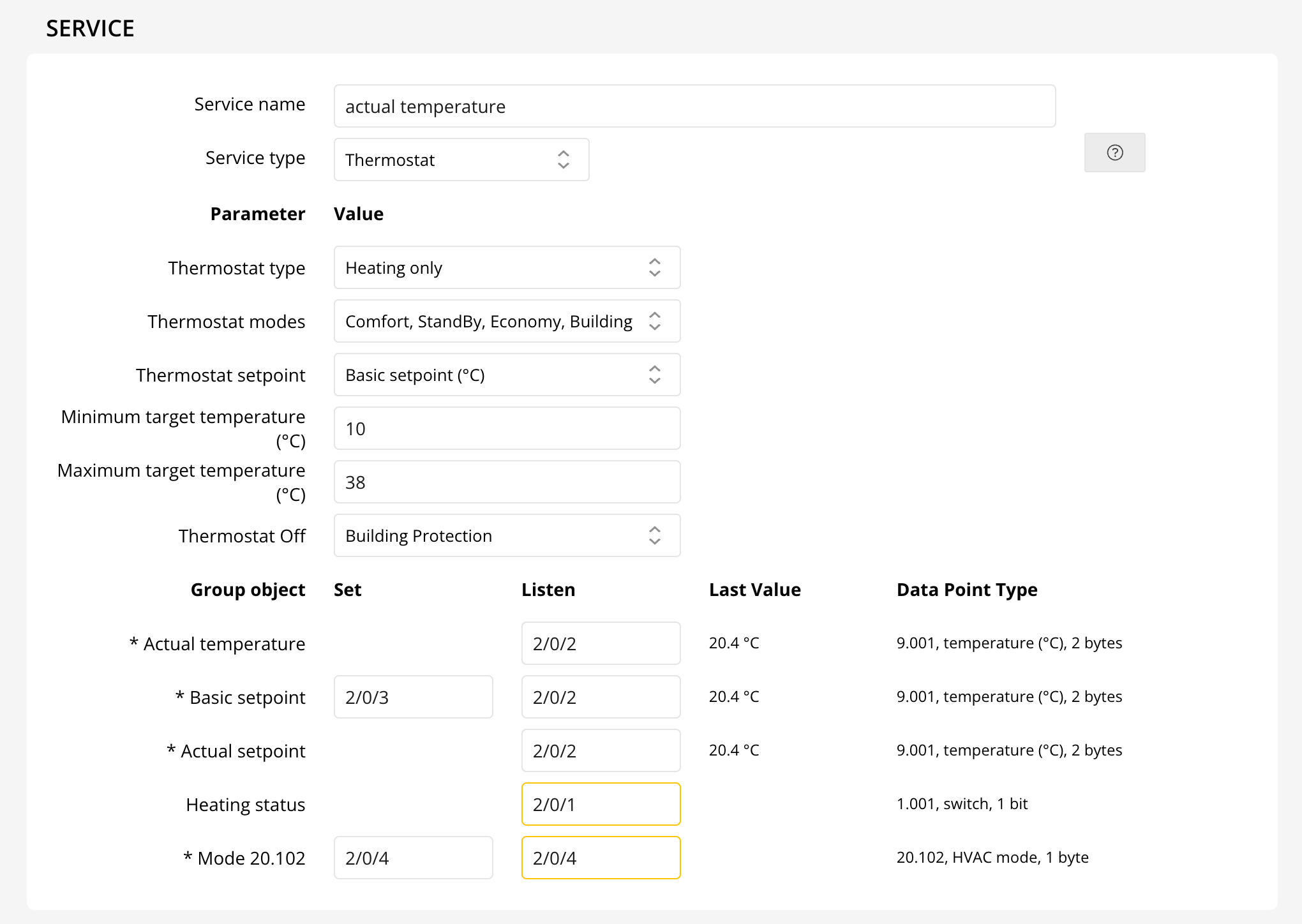
The Heating status indicates if heating is active.
- Cooling Only: Perfect for summer days, this mode activates just the cooling feature.
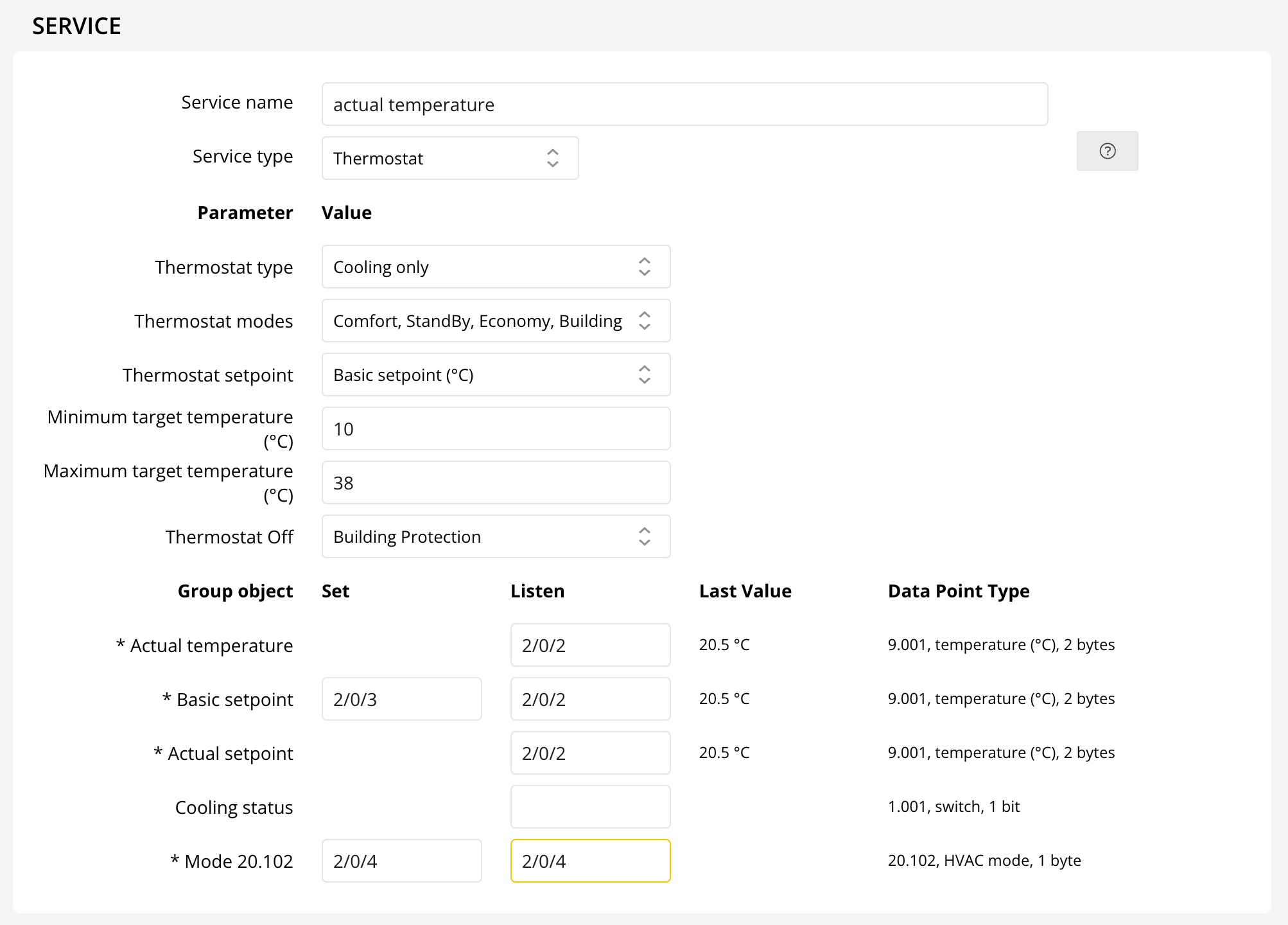
The Cooling status shows if cooling is running.
- Heating and Cooling: Enjoy year-round comfort with both heating and cooling. Choose manual or automatic switching for ultimate flexibility.
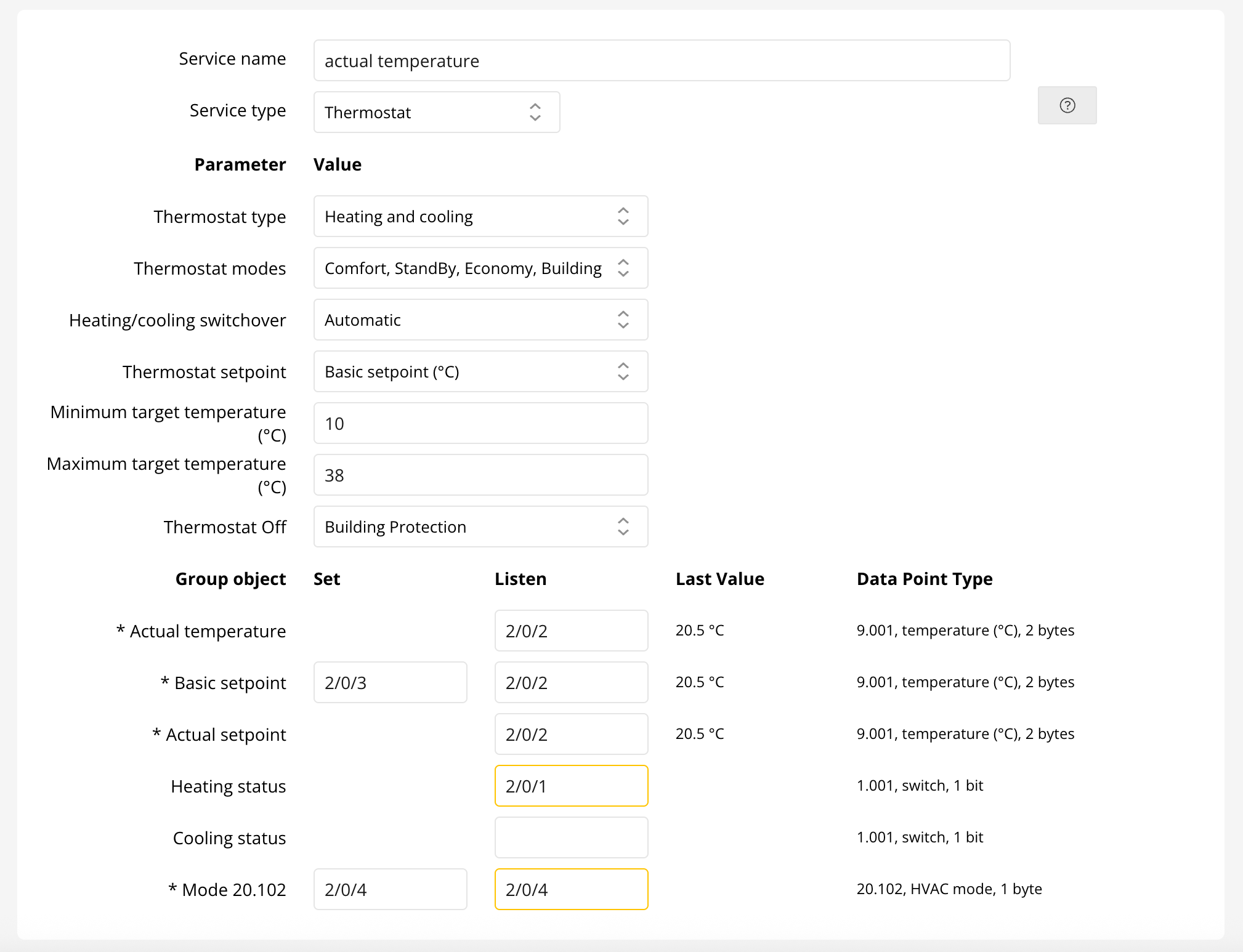
Manual mode allows you to set group addresses for heating/cooling. Both Heating and Cooling statuses can be monitored.



Advanced HVAC Modes
Choose from multiple HVAC modes to suit your needs:
- None
- On, Off
- Comfort, StandBy, Economy, Building Protection
- Auto, Heat, Cool, Off

For "On, Off" mode, simply set the group addresses for basic on/off control.

Advanced modes like "Comfort, StandBy, Economy, Building Protection" and "Auto, Heat, Cool, Off" provide enhanced control for both thermostats and air conditioning units.


Thinka then adds up to three thermostat parameters: Mode value for Auto, Mode value for Heat and Mode value for Cool.
The Thermostat type decides which ones you see. Heating Only shows the Heat field. Cooling only shows the Cool field. Heating and Cooling shows all three. Enter the number your gateway uses for each mode.

Then set the group addresses for the On/Off and Mode value rows.

Thermostat Setpoint Settings
Adjust your preferred temperature directly or shift the setpoint by temperature difference or counter value. Ensure the step size matches your KNX thermostat parameters.
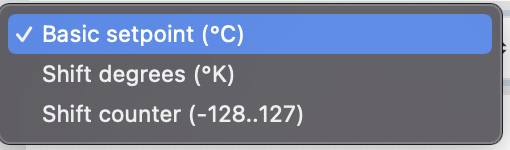
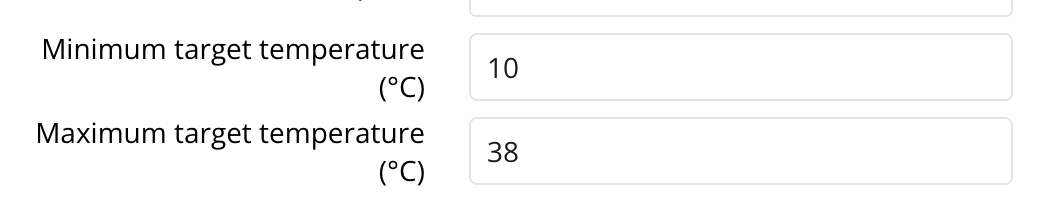
Minimum and Maximum Target Temperatures
Set your desired temperature range in the Home app for precise climate control.
Key Group Object Definitions
- Actual Temperature: Displays the current room temperature.
- Basic Setpoint: Controls your main temperature setting.
- Setpoint Shift: Adjusts the temperature incrementally.
- Actual Setpoint: Reflects the final set temperature.
- Heating/Cooling Status: Shows if heating or cooling is active.
- HVAC Modes (20.102 & 20.105): Advanced climate modes for greater flexibility.
- On/Off: Instantly power your thermostat on or off.
Note: Thinka offers flexible and easy-to-use thermostat configuration options. For simple operation, set your target temperature or use a sensor for read-only temperature monitoring.
For step-by-step guides using your favorite smart home platforms, visit our FAQs for Apple Home, Google Home, or Alexa.