How do I configure my scenes?
KNXHow to Easily Configure Your KNX Scenes with Thinka
Unlock seamless smart home control by configuring your KNX scenes with Thinka! Setting up is simple:
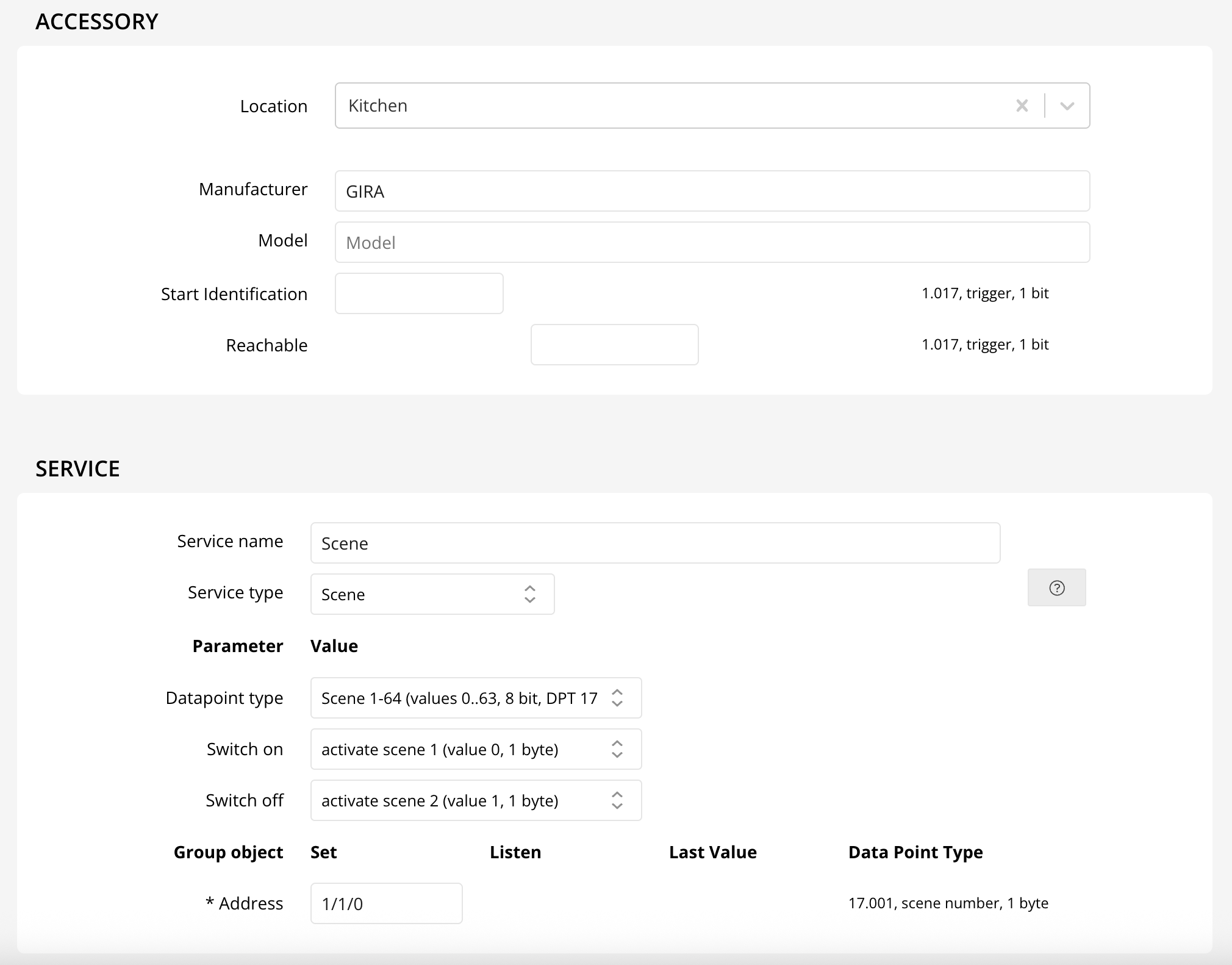
- Assign Your Scene Group Address: Enter the group address and scene numbers for each scene you want to control.
- Optional Off Scene: Add a second scene number to define an "Off" scene for even greater flexibility.
Once configured, your scenes become instantly available across your favorite smart platforms:
- Alexa, Google, and Olisto: Access your scenes directly as Scenes for voice or app activation.
- Apple HomeKit: Scenes appear as Switches. Turning the switch On triggers your On scene, while switching Off (if set) activates your Off scene.
For KNX Scene A/B (DPT 1.022) devices, Thinka maps Scene A to "On" and Scene B to "Off"—making smart integration effortless.
Enhance your KNX scenes with extra HomeKit automations by adding actions in the Apple Home app. Simply go to Automations, create a trigger for your scene switch, and choose the devices you want to control—all activated by Siri, the Home app, or KNX!