How do I allow Thinka support remote access to my Thinka for Z-Wave?
Z-WaveHow to Enable Thinka Support Remote Access for Your Thinka for Z-Wave
Need help from Thinka support? Granting remote access to your Thinka for Z-Wave is quick, easy, and secure! Follow these simple steps to get expert assistance from our team:
- Via Web Interface:
- Click the settings icon at the top right of the page.
- Navigate to the 'RemoteAccess' tab.
- Click the 'Start Remote Support Access' button.
- Use 'Share with Thinka support' to email the access code directly to a Thinka support agent.
- Via Thinka Setup App:
- Download the Thinka Setup App from the App Store.
- Open the app, select your Thinka device, and tap 'Remote Access'.
After enabling remote access, a unique number (also called the "magic number") will be displayed. Simply share it with Thinka support by clicking 'Share with support'. Only authorized Thinka personnel can access your device—your privacy and security are guaranteed!
Below are some helpful images to guide you through the process:
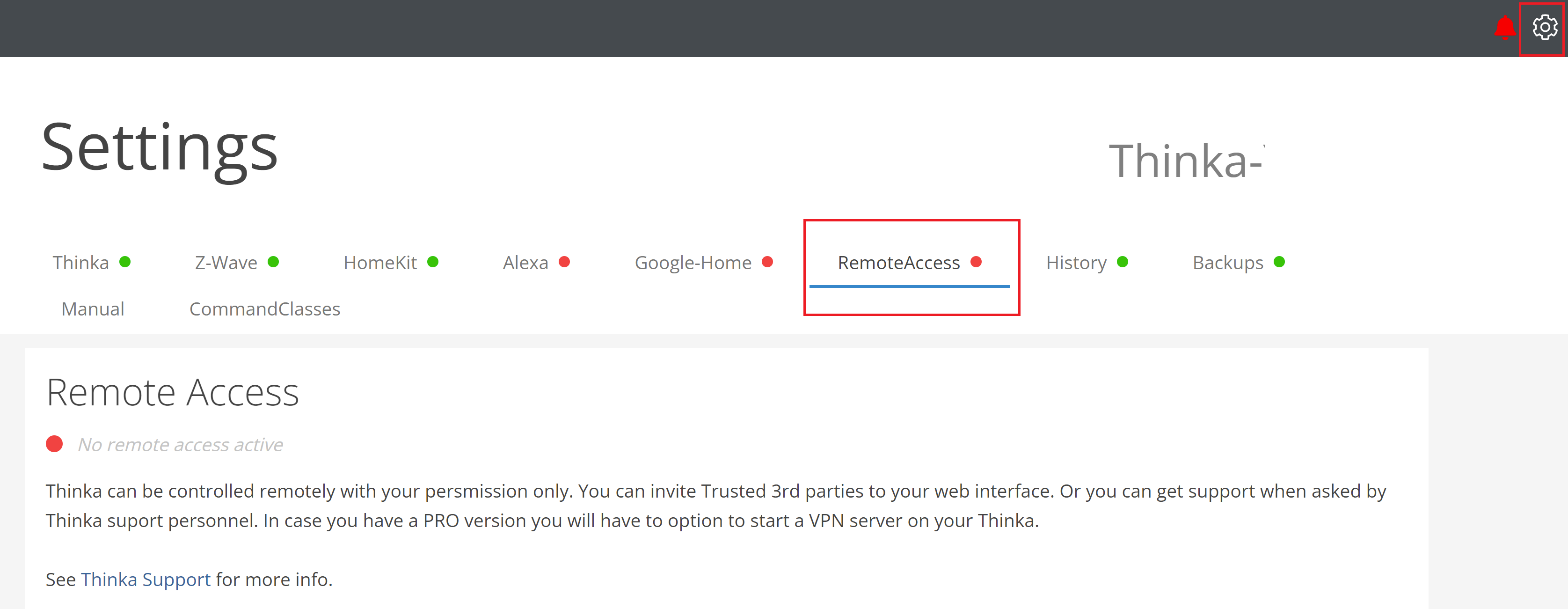
Click the settings icon and go to the 'RemoteAccess' tab.

Click the 'Start Remote Support Access' button.
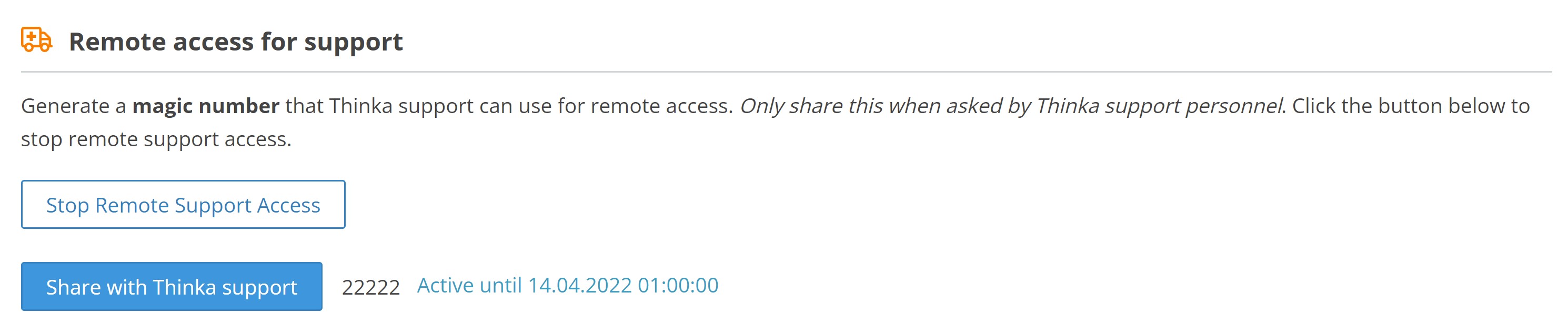
Share the displayed magic number with Thinka support for secure remote assistance.